

What is this?
Labels help you organize contacts into meaningful groups. Use them to target campaigns, segment customers, trigger workflows, and filter your Inbox and Contacts lists.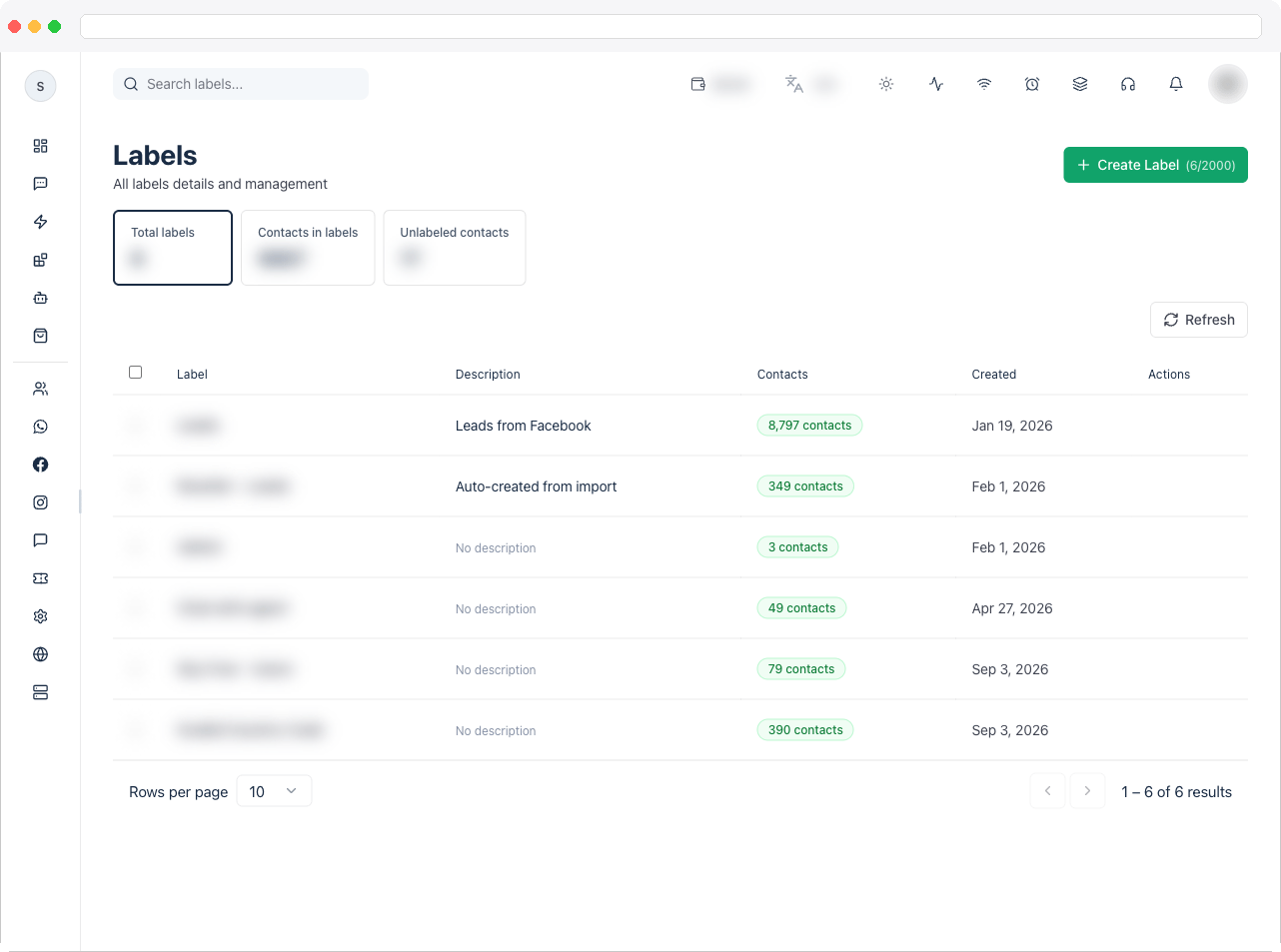
Labels require the
labels:view permission and a channel. The number of labels you can create depends on your plan and is shown on the Create Label button.What can I do here?
- See summary tiles: Total labels, Contacts in labels, and Unlabeled contacts
- Search labels by name
- Create, Edit, and Delete labels, or Delete Selected in bulk
- Track how many contacts belong to each label
- Use labels for campaign targeting, customer segmentation, workflow automation, and grouping by behavior or category
Label library
How to use it
Create a label
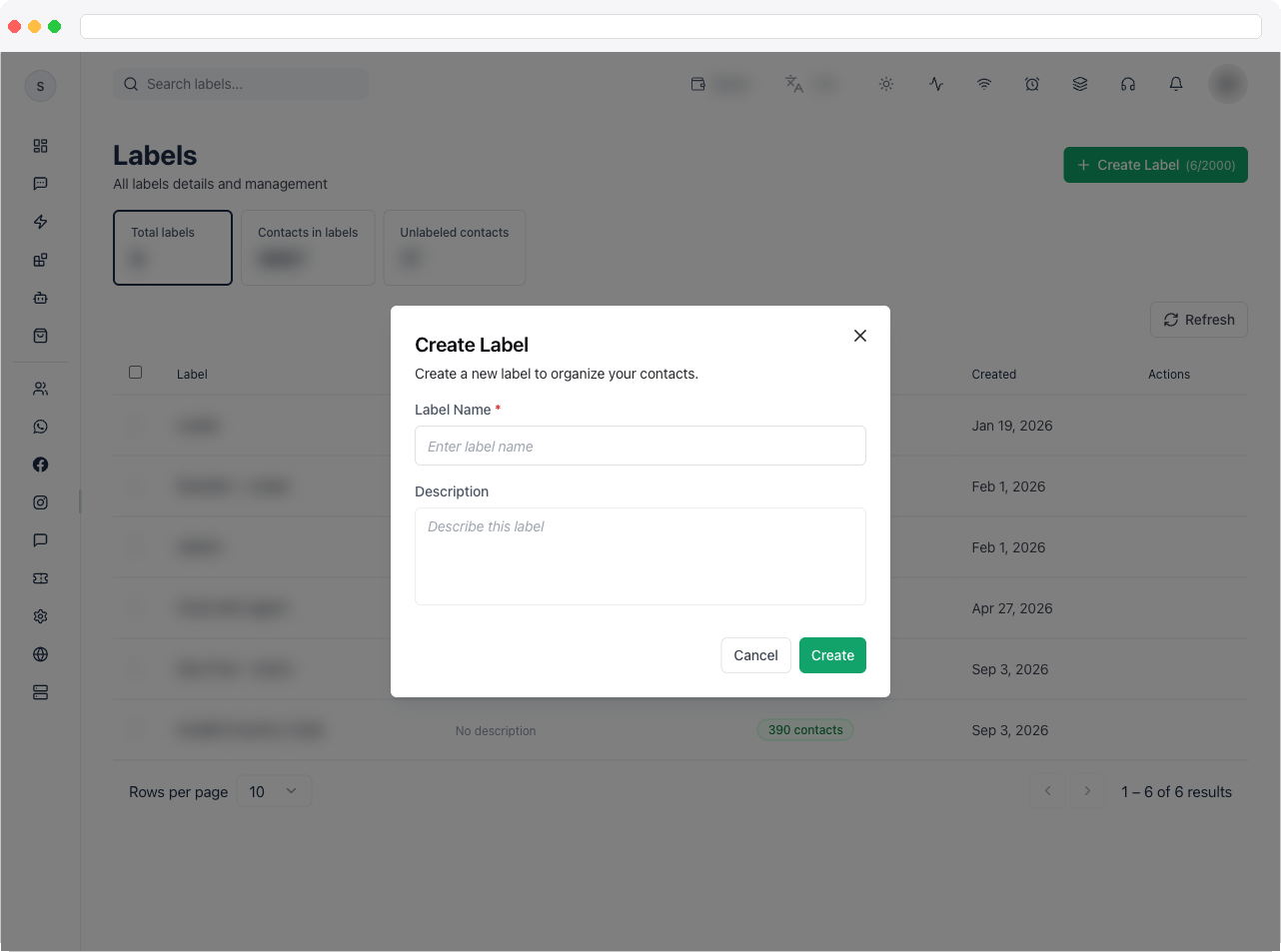
- Go to Contacts → Labels and click Create Label.
- Enter a Label Name (required) and an optional description.
- Click Create. Use Cancel to close without saving.
Recommended workflow
- Create labels based on your use case.
- Assign labels to contacts — from Contacts, the Inbox conversation header, or an automation.
- Use labels in filters, campaigns, and automations.
- Review and clean up unused labels regularly.
Troubleshooting / Technical Notes
- “Label name is required.” Enter a name before saving.
- “Please select or create a WhatsApp channel first.” Labels belong to a channel — connect one in Channels.
- “Upgrade your plan.” You’ve reached your plan’s label limit.
- Deleting a label is permanent. Contacts keep existing but lose that label, so check that no campaign or automation depends on it first.