

What is this?
Automation turns repetitive conversations into reliable workflows. You define what should happen when something occurs — a message arrives, a conversation starts, a webhook is received, a field changes — and the system handles the routine while your team focuses on exceptions.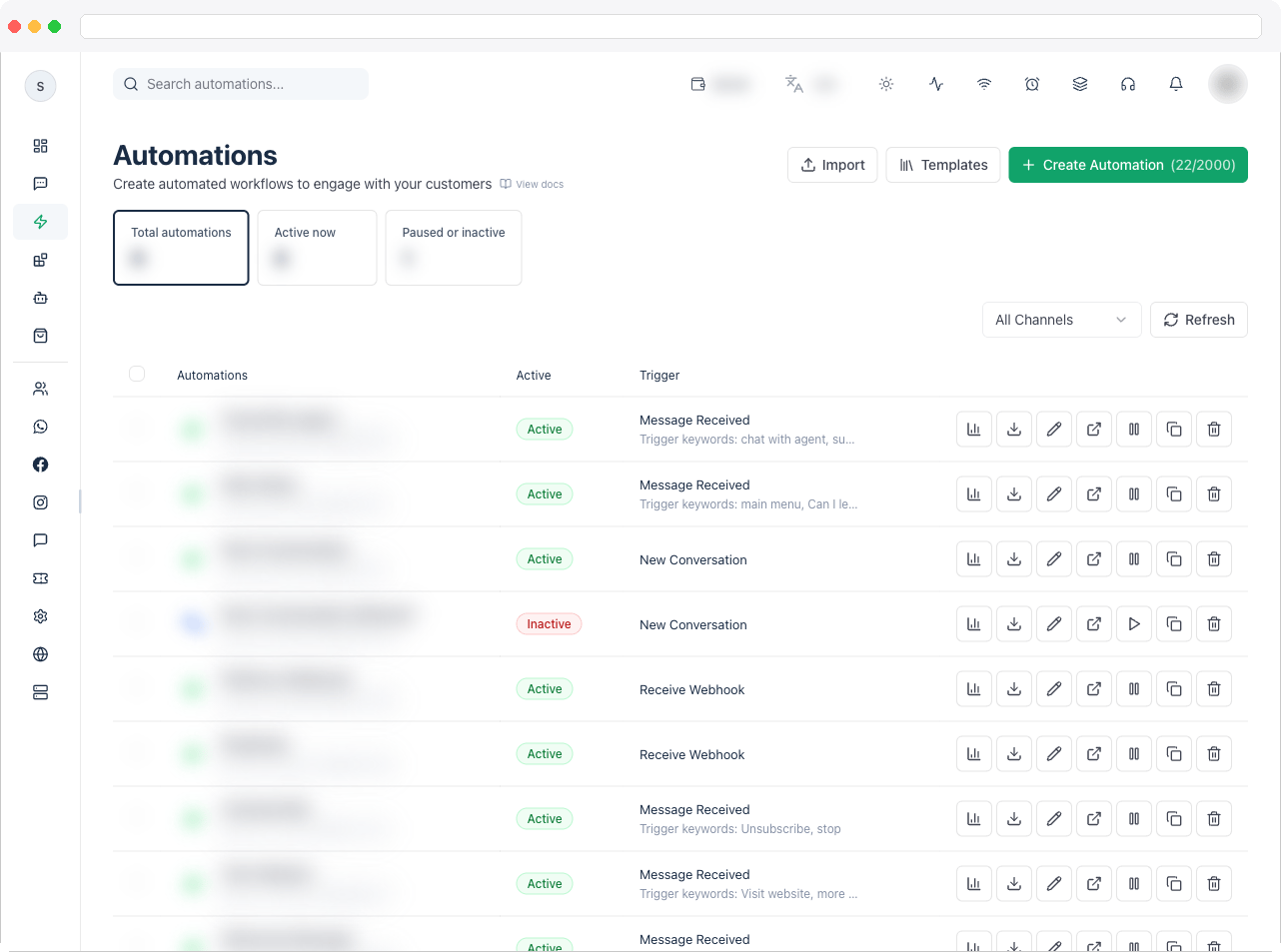
Automation requires the
automations:view permission, an active channel connected to WhatsApp, Instagram, Facebook, Telegram, or Web Chat, and a plan that includes it. The number of automations you can create depends on your plan and is shown on the Create Automation button.What can I do here?
- Build flows for WhatsApp, Instagram, Facebook, Telegram, and Web Chat
- Choose the trigger that starts each workflow
- Assemble flows from message, question, logic, and action steps in the visual builder
- Start from a ready-made template, or Import a previously exported flow
- Control whether each flow is Active, Paused, or inactive — one at a time, or several at once with Activate Selected and Deactivate Selected
- Search, filter by channel and trigger, sort, export, edit, and delete automations
- React to activity in your WhatsApp groups with WhatsApp Group Triggers
How to use it
Channel-aware flows
Every automation belongs to a channel type — WhatsApp, Instagram, Facebook, Telegram, or Webchat. The channel decides which triggers and steps are available, so the same workspace can run different logic on each. Confirm the active channel in Channels before you build or activate anything.Trigger-driven execution
Every flow starts with a trigger. Common ones include Message Received, New Conversation, No Match Reply, Receive Webhook, Contact or Custom Field Changed, and Pipeline Stage Changed, plus channel-specific triggers such as Instagram and Facebook comments, story replies, and referral links, Telegram commands, and WhatsApp group messages, joins, and join requests. See Triggers.What the builder offers
The builder has a palette of steps grouped by purpose:
Every step is explained in detail — what it does, when to use it, and its settings — in the Builder Steps reference. Reusable message content is covered in Use Templates.
Create a Workflow
Build a focused automation from trigger to action, and learn the builder.
Triggers
Choose the event that starts a workflow.
Manage Live Flows
Pause, activate, and clean up production flows.
Pipelines
Start workflows when a contact moves through a Pipeline.
Recommended workflow
1
Start with the business goal
Decide what the automation must do before you open the builder — for example qualify leads, route support requests, send first responses, or recover missed interactions.
2
Pick the right trigger
Match the trigger to the real starting event. A wrong trigger causes duplicate runs or missed executions.
3
Build focused logic
Keep each flow narrow. One clear job per automation keeps testing and ownership simple.
Good operating habits
- Name clearly. Include channel, trigger, and purpose — for example
WA - Lead Intake → Qualified. - Keep production flows active only when tested. Pause new or changed flows until a control run is verified.
- Monitor the last-run time. If activity spikes or drops, check the trigger first.
- Remove outdated flows. Delete flows you no longer need so the active list stays trustworthy.
- Pair with human context. For sensitive handoffs, have the automation add a Note explaining what was automated.
Troubleshooting / Technical Notes
- “Please select or create a channel first to manage.” Create or select a channel in Channels.
- The Create button says “Upgrade your plan.” You’ve reached your plan’s automation limit.
- A flow isn’t running. Check that it is Active, that its channel matches the conversation, and that the trigger fits the event — see Triggers.
In this section
Related docs
- Analytics — execution counts, node health, and failure reasons
- Inbox — where live conversations happen
- Pipelines — where business progress is tracked
- Notes — internal context that survives handoffs
- Custom Fields — data collected and updated by workflows
- AI Agents — AI-handled conversations without a manual flow