

What is this?
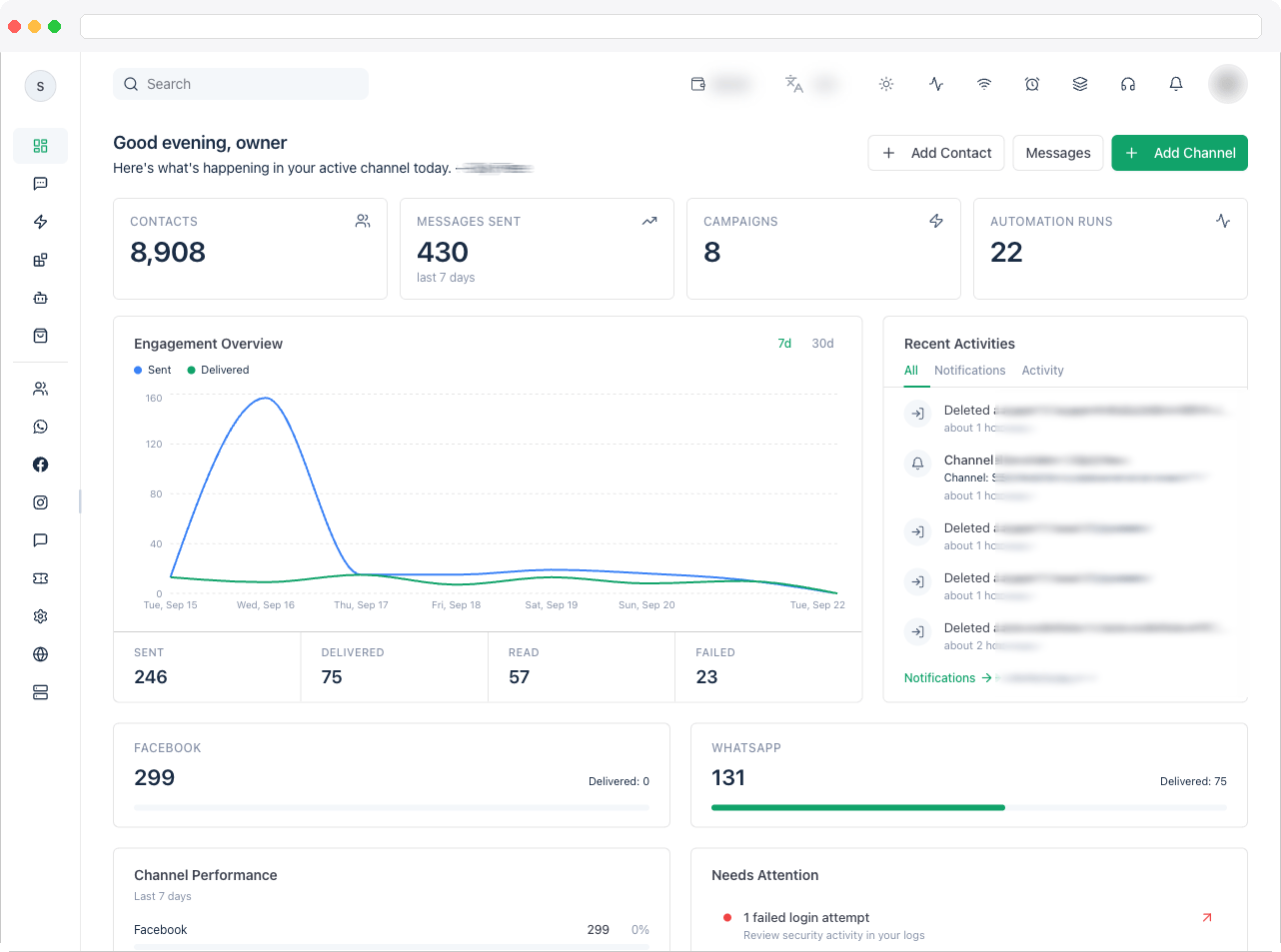
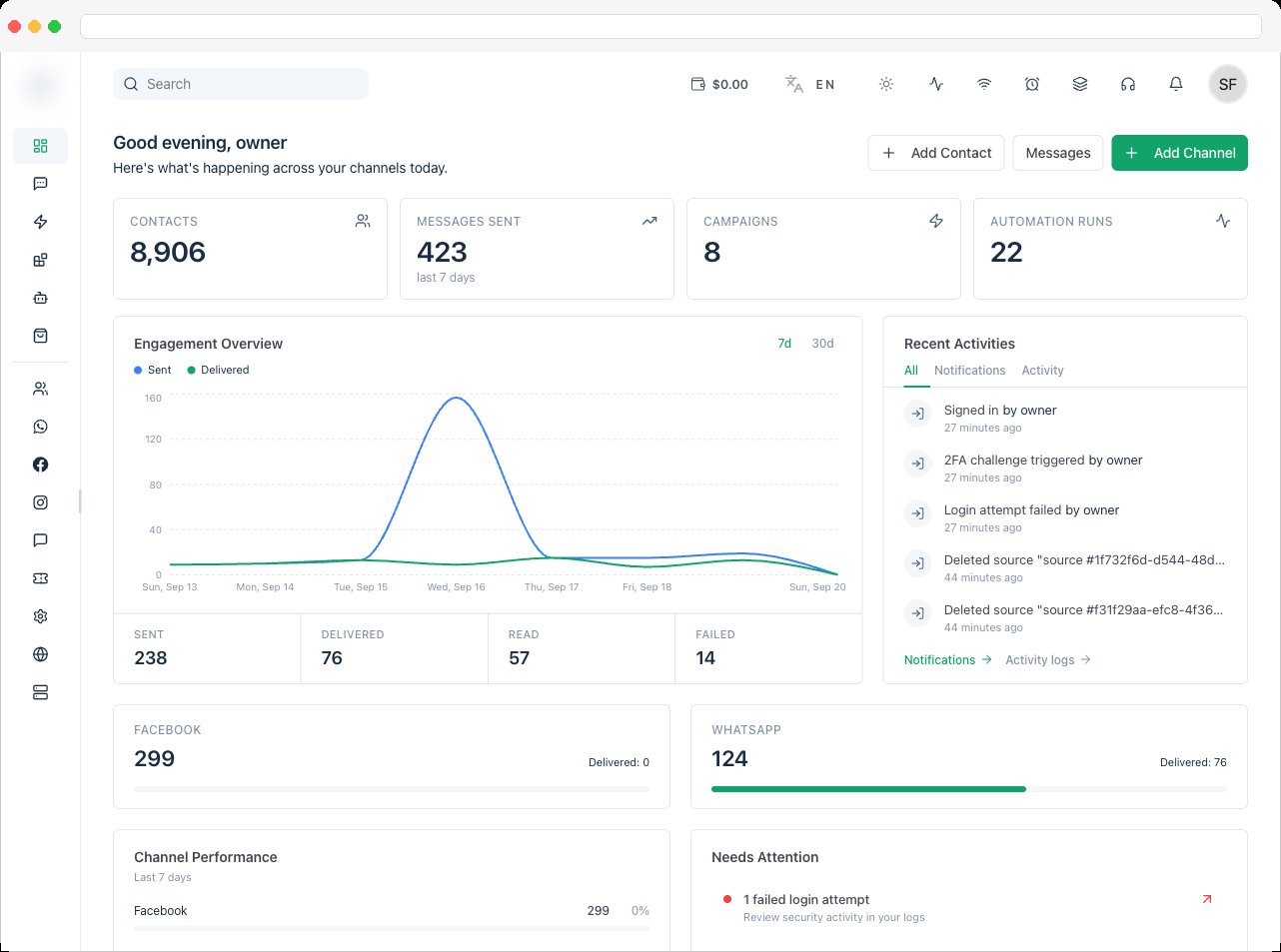
The Dashboard is your workspace’s home page. It gives you a real-time overview of messaging performance, how much of your workspace is set up, and what’s happened recently — for the channel you’re currently working in.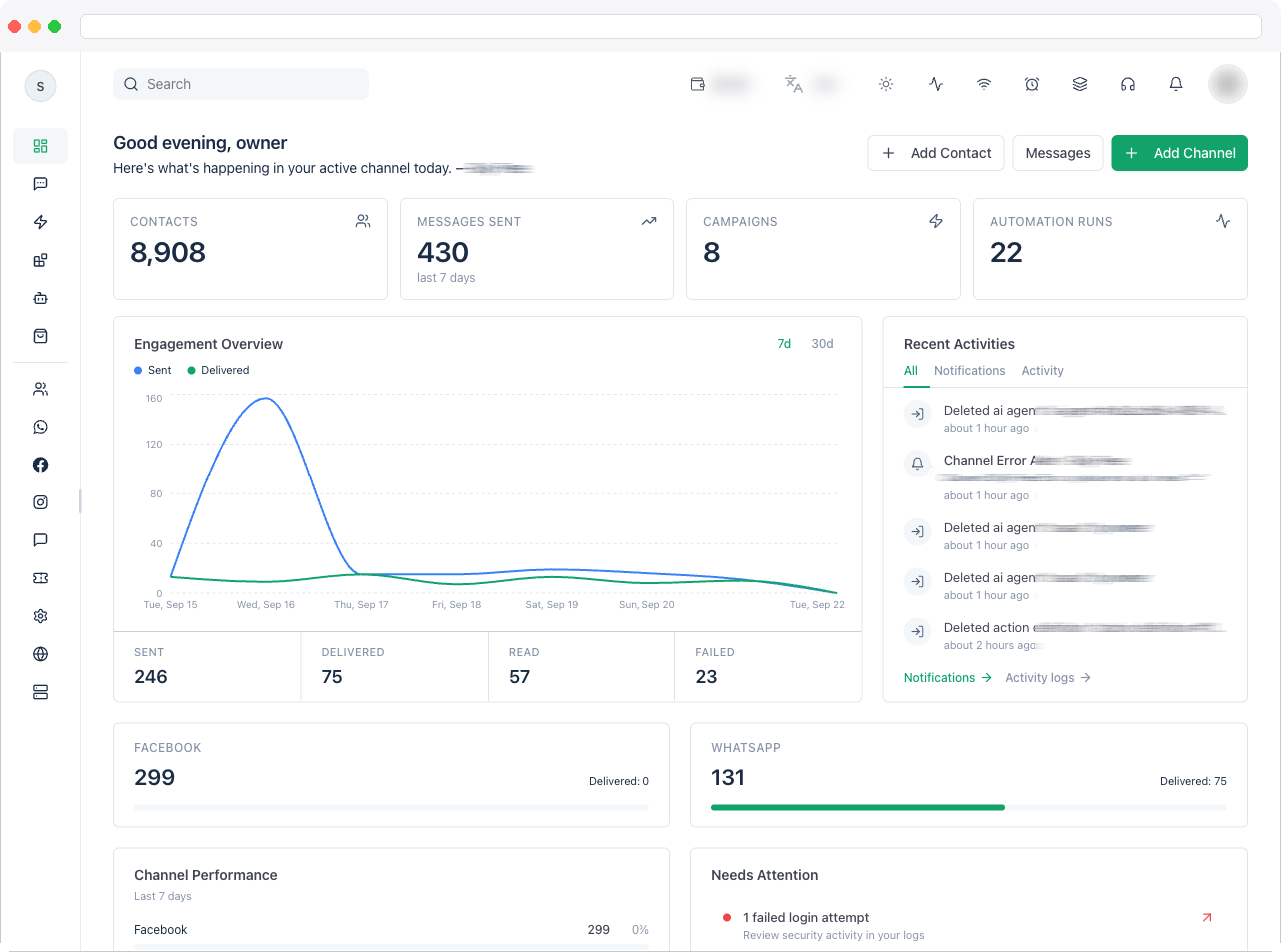
All figures are for the active channel. If they don’t look right, check which channel is selected in Channels.
What can I do here?
- Jump straight into common tasks with the quick actions: Add Contact, Messages (opens Inbox), and Add Channel
- Review the summary cards at the top
- Track message trends in Engagement Overview
- Follow Recent Activities and open Notifications or Activity logs
- Compare channels in Channel Performance
- Act on items under Needs Attention
- See how much you’ve built in the Platform Resources strip
How to use it
Summary cards
[SCREENSHOT: dashboard-summary-cards — Dashboard — Summary cards] The top of the page shows key metrics for the active channel, such as Contacts, Messages Sent, Campaigns, and Automation Runs.Engagement Overview
Recent Activities
Channel Performance
If you have more than one channel, Channel Performance compares them for the selected period.Needs Attention
Needs Attention highlights things to act on, such as unread notifications from your admin, failed login attempts worth reviewing in the activity logs, and a reminder to create your first message template. Click an item to go straight to the relevant page.Platform Resources
This strip shows how much you’ve set up: Total Templates, Team Members, WhatsApp Flows, AI Agents, Labels, and Custom Fields.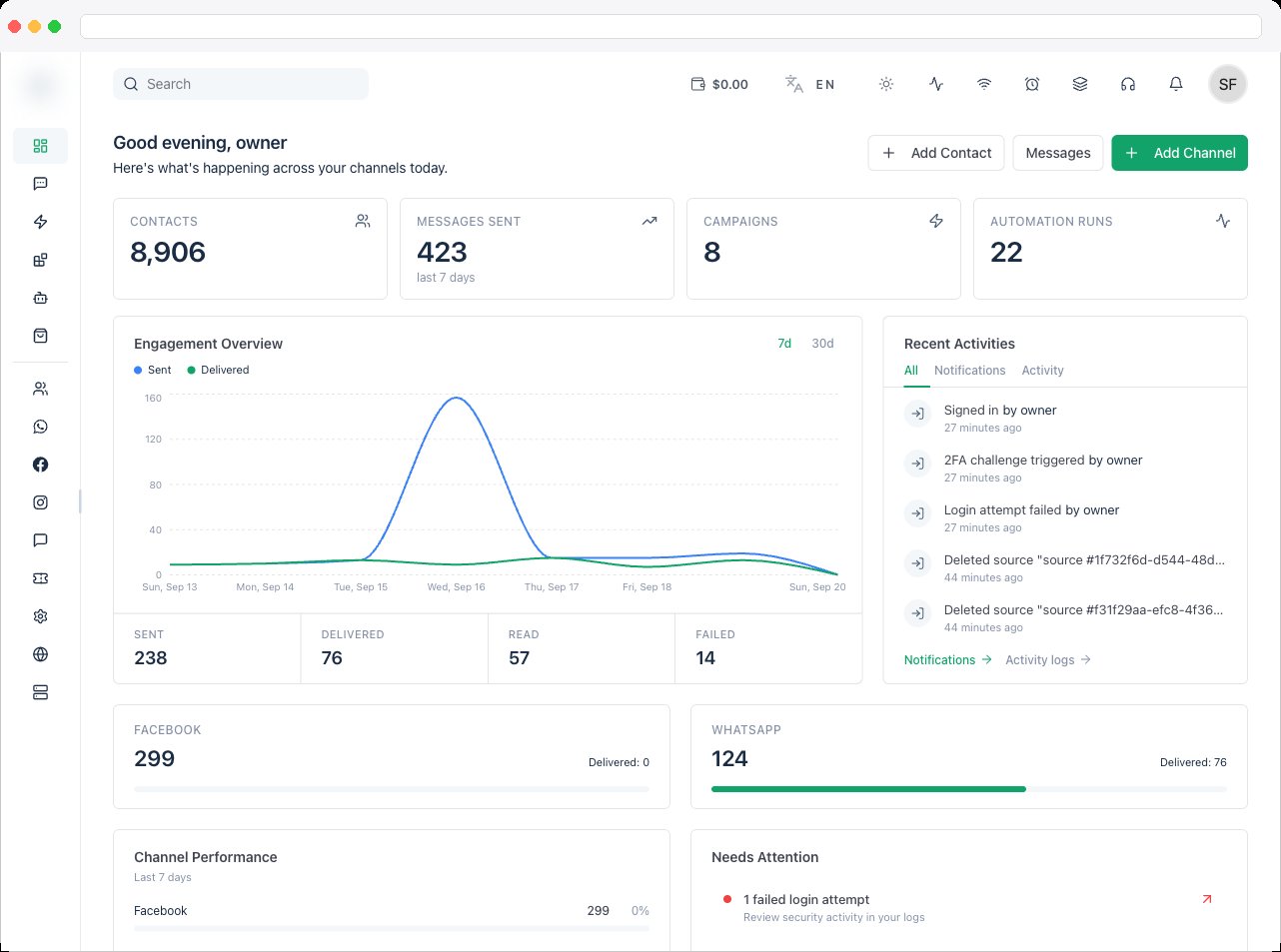
Troubleshooting / Technical Notes
- “Please select or create a channel first to manage.” Create or select a channel in Channels.
- “No data for this period.” There were no messages in the selected range. Try a longer range, such as 7 days or Custom.
- Numbers look wrong. Confirm the active channel — every metric follows it.