

What is this?
Channels is where you connect the places your customers reach you — WhatsApp, Instagram, Facebook, Telegram, TikTok, Threads, Web Chat, Google — and set up Event Studio and Booking Studio. It’s also where you choose which channel is active. The active channel decides what you see across the workspace. Dashboard, Inbox, Campaigns and Analytics all show data for the active channel, so if the wrong one is selected you’ll see data from the wrong number, brand or account.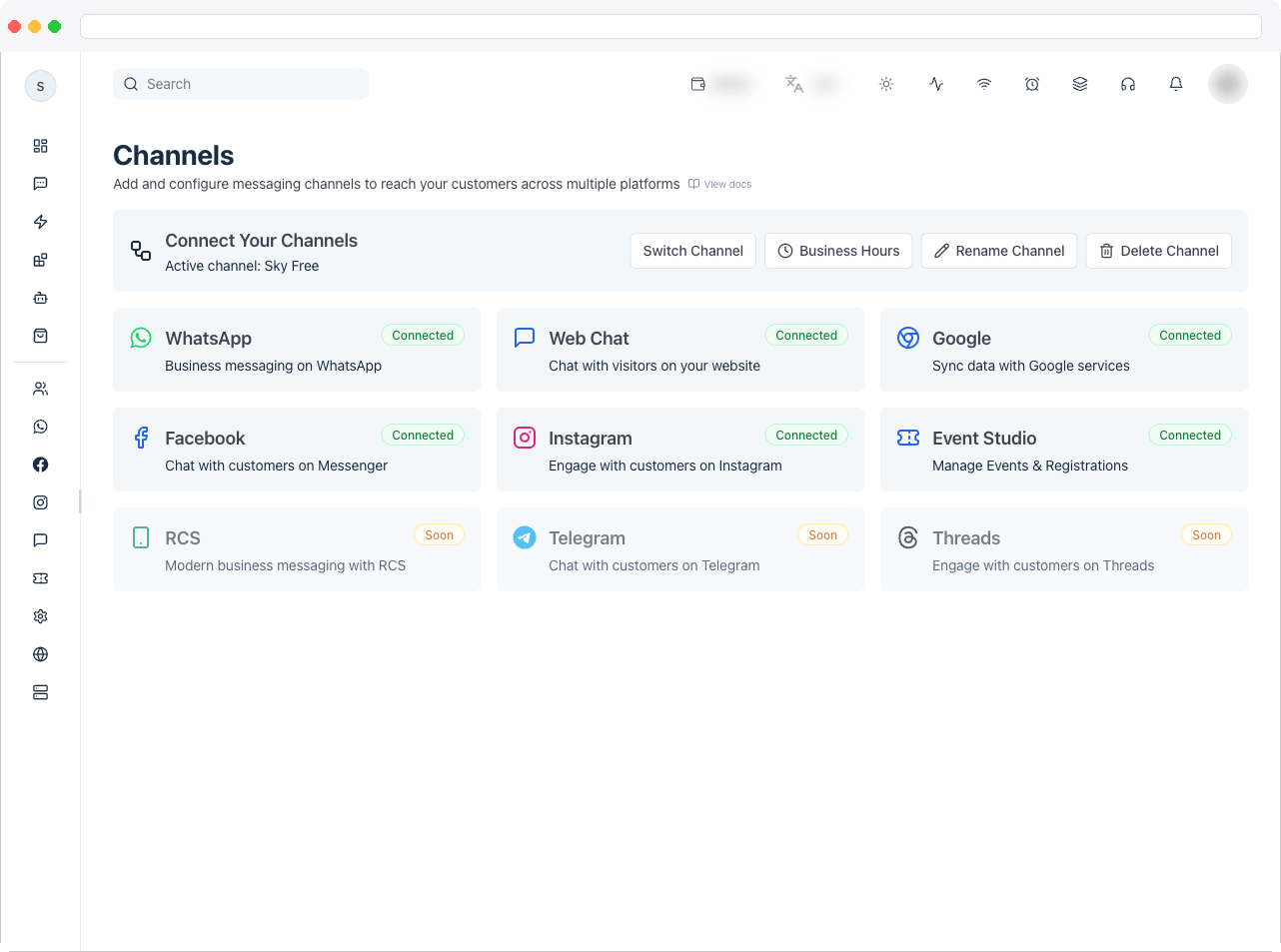
Open Channels from the profile menu in the top-right corner. You need the Channels permission. Which channel types appear depends on your plan and licence — a channel your platform has switched off is hidden, and one your plan doesn’t include shows Upgrade.
What can I do here?
- See every channel type as a card with its status
- Open a channel to connect it, check its health, reconnect it, or disconnect it
- Switch Channel, set Business Hours, Rename Channel, or Delete Channel
- Jump straight to one channel with a link such as
/channels?channel=whatsapp
How to use it
The channel cards
Each card shows the channel’s name, a one-line description and a status:
Click a card to open that channel. The address changes to
/channels?channel=<channel>, which you can bookmark or share with a teammate:
Inside a channel the header has an Add new … button (for example Add new WhatsApp account) with a counter such as
1/3 — how many channels your plan allows — and a Back button to return to the cards. If your plan’s limit is reached, the button is disabled and its tooltip says to upgrade.
Connect a channel — the basic steps
- Open Channels and click the card of the channel type you want.
- Click its Add new … (or Connect …) button and follow the sign-in or setup steps — each channel page explains them.
- When it finishes, go back: the card now says Connected.
Switch the active channel
Click Switch Channel and pick one. Do this before you reply in the Inbox, check the Dashboard, launch a campaign or read Analytics.Set business hours
Click Business Hours to set the schedule that decides when the channel appears online or offline. It is shared by WhatsApp, Web Chat, Facebook, Instagram and your Booking Studio page.Rename a channel
Click Rename Channel, type the new name and save.Disconnect vs Delete Channel
These are different:
Each channel page shows where its Disconnect button is and what it does. Event Studio and Booking Studio have no Disconnect — they have a Public pages switch instead, because every event, service and booking belongs to them.
Delete a channel
- On the cards page, click Delete Channel.
- Read the list of what will be removed: all contacts and conversations, the team members assigned to the channel, the WhatsApp, Facebook, Telegram, Instagram, Web Chat and Google connections, and its messages, templates and API logs.
- Type I ACCEPT TO DELETE exactly, then confirm.
Delete Channel is disabled while the channel’s WhatsApp number is on credit line billing with the credit line Attached or Pending. Hover over it to see This number is on credit line billing and can’t be disconnected or deleted. The same lock disables WhatsApp’s Disconnect — see WhatsApp.
Troubleshooting / Technical Notes
- I can’t see the Channels page. You need the Channels permission — ask an admin. See Team.
- A card says Upgrade. Your plan or licence doesn’t include that channel type. See Platform Plans.
- A card is missing. Your platform has switched that channel type off.
- The Add button is disabled. You reached your plan’s channel limit, or you lack permission to create that channel type. The tooltip says which.
- Dashboard or Inbox shows the wrong data. Check which channel is active and use Switch Channel.
- Delete Channel is greyed out. The WhatsApp number is on credit line billing — see the note above.