

What is this?
Channels is where you connect your communication channels — WhatsApp, Web Chat, Google, Facebook, Telegram, Instagram, and Event Studio — review which channel is currently active, and switch between them. The active channel controls what you see across the workspace. Dashboard, Inbox, Campaigns, and Analytics all load data for the active channel, so if the wrong one is selected you’ll still see data — but it may belong to the wrong number, brand, or integration.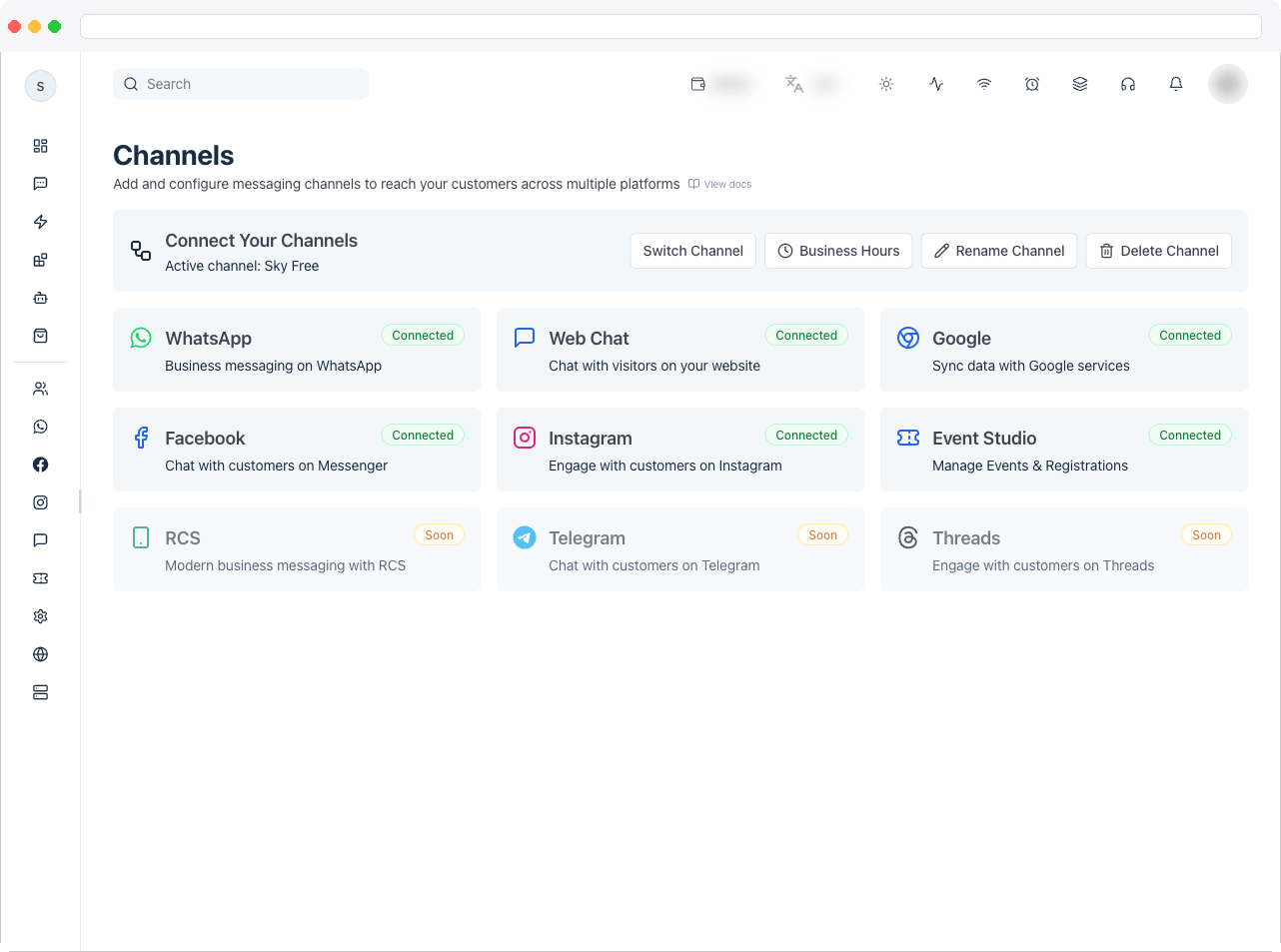
Channels is opened from the profile menu in the top-right corner. Which channel types you can connect depends on your permissions and plan. Channels your plan or license doesn’t include show Not Licensed with an Upgrade option.
What can I do here?
- Confirm which channel is currently active
- Switch Channel before doing channel-based work
- Connect a channel from the channel cards — WhatsApp, Web Chat, Google, Facebook, Telegram, Instagram, and Event Studio
- See each channel’s status: Connected, Disconnected, or Ready to connect
- Set Business Hours for the channel (shared by WhatsApp, Web Chat, Facebook, and Instagram)
- Rename Channel
- Delete Channel when it’s no longer needed (a WhatsApp number on an active credit line can’t be deleted — see below)
- Connect a WhatsApp number with Add new WhatsApp account, and see on its card how it is billed (Direct (pay Meta) or Credit Line (through wallet))
- Add another Facebook Page with Add new Facebook Page
- Create an event under Event Studio with Create event
Some channel types — such as RCS and Threads — are shown as Soon while they’re not yet available.For Telegram, click Add new Telegram bot and paste your bot’s token. See Connect a Telegram Bot.
How to use it
1. Confirm the active channel
Before you go anywhere else in the app, check which channel is active. This is the first thing to check whenever Dashboard or Inbox seems to be showing the wrong data.2. Connect a channel
- Go to Channels from the profile menu.
-
Open the card for the channel type you need and complete its setup flow. For Google, see Google.
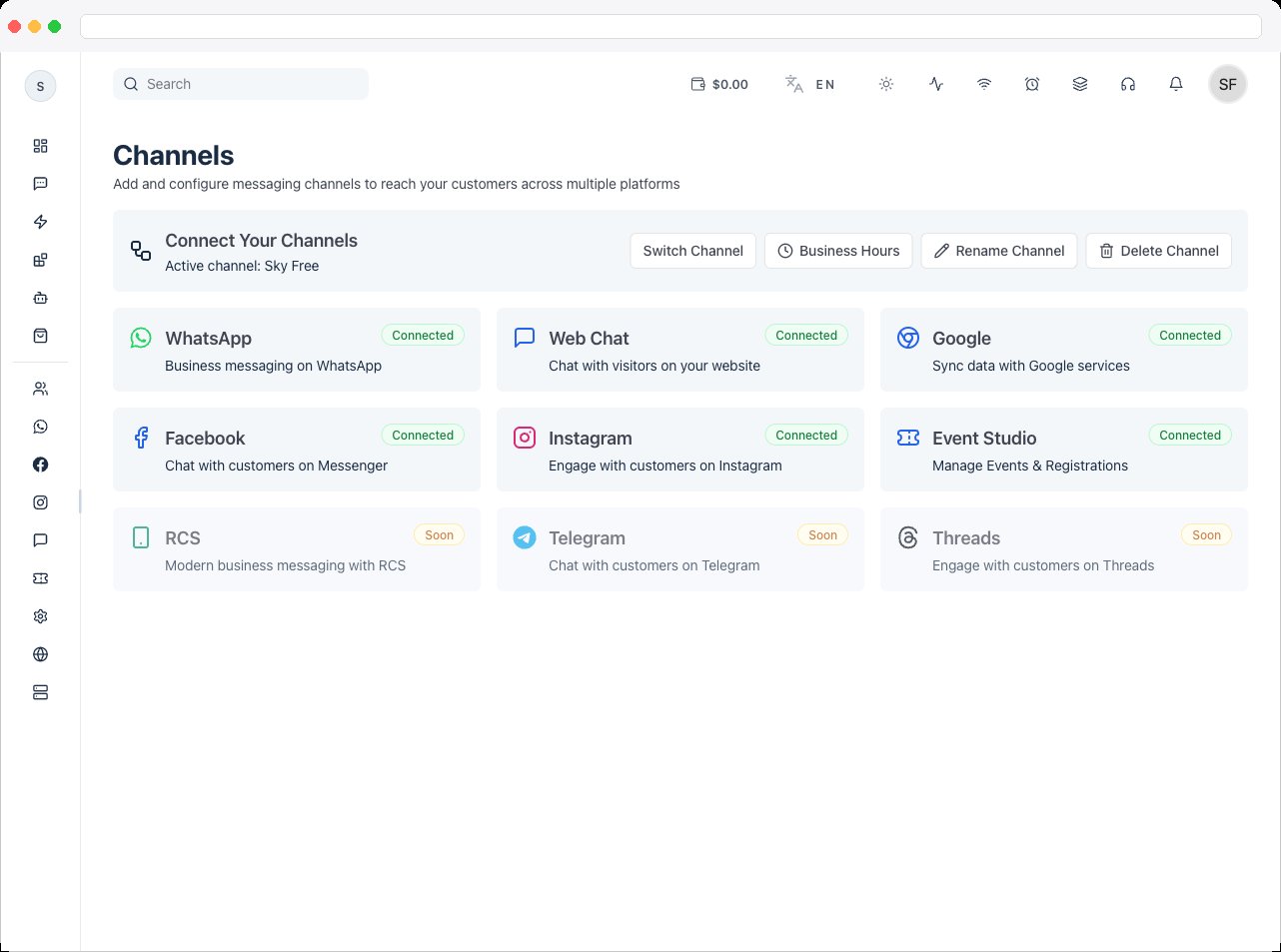
- Once connected, the card shows Connected.
3. Switch channels
Use Switch Channel before you reply in Inbox, check Dashboard, launch campaigns, or review analytics, so you’re working in the right context.4. Set business hours
Click Business Hours to set the schedule used to decide when the channel appears online or offline.5. Rename or delete a channel
- Use Rename Channel to change its name.
- To remove a channel, choose Delete Channel and confirm.
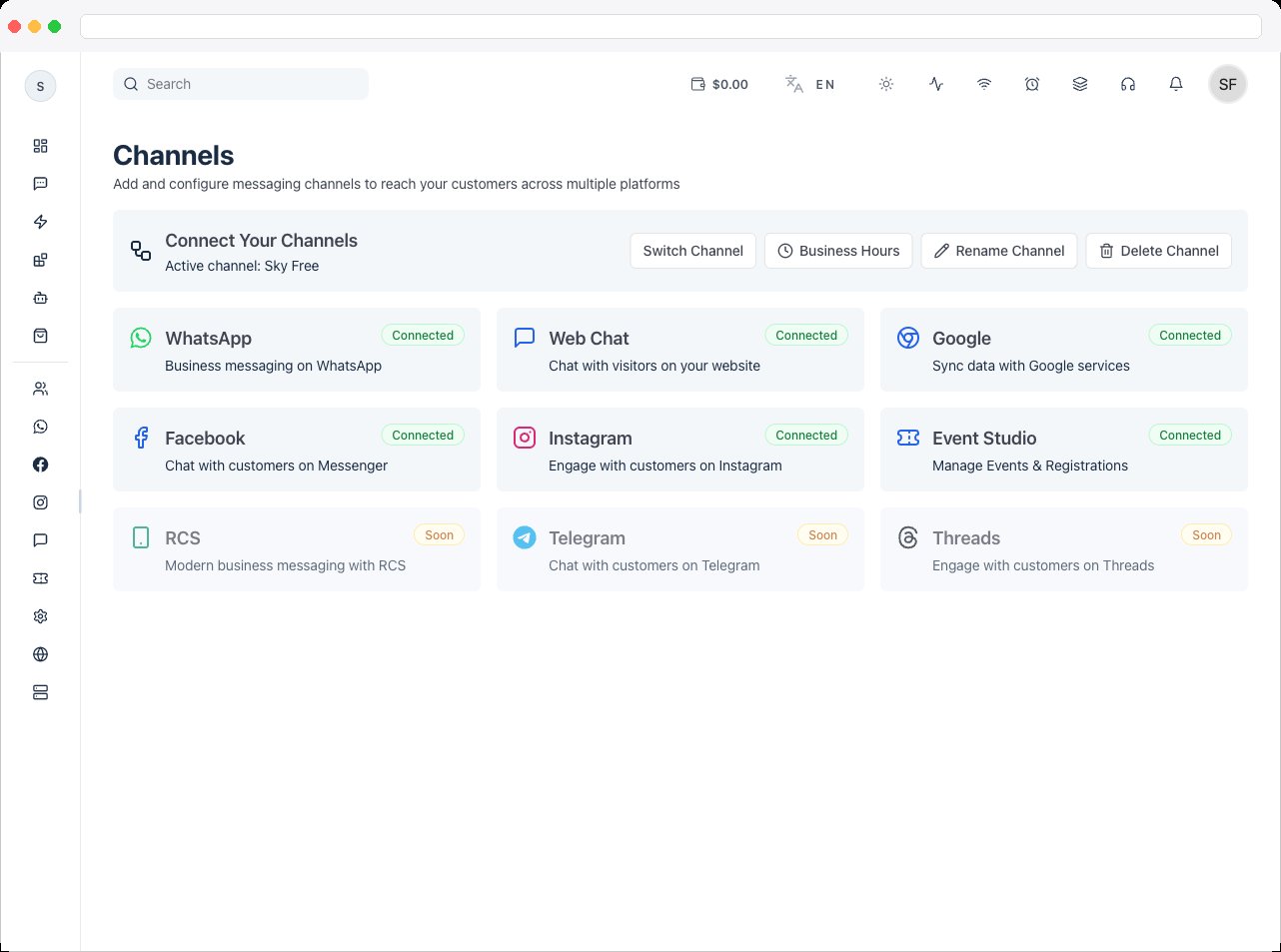
If the channel’s WhatsApp number is on Credit Line (through wallet) billing and its credit line is Attached or Pending, Delete Channel is disabled. Hover over it to see “This number is on credit line billing and can’t be disconnected or deleted.” See How the channel is billed.
Connect a WhatsApp number
Adding a WhatsApp number needs Channels access (
channels:create) and a plan that includes WhatsApp integration. If your plan’s channel limit is reached, the button is disabled and its tooltip says to upgrade.- On Channels, open the WhatsApp card.
-
Click Add new WhatsApp account. The count next to it (for example
1/3) is how many channels your plan allows. If the active channel has no WhatsApp number yet, the card also offers Add WhatsApp to this channel. -
In Choose Integration Method (“Select how you want to integrate your WhatsApp Business account”), pick one of the options your platform offers:
[SCREENSHOT: whatsapp-choose-integration-method — the Choose Integration Method dialog showing the Direct Cloud API, Tech Provider / Partner, and Solution Partner options]
-
Complete the Meta sign-up (Tech Provider / Partner and Solution Partner), or fill in the Add New WhatsApp Channel form (Direct Cloud API):
- Phone Number — the WhatsApp Business phone number.
- Phone Number ID — found in Meta Business Suite under WhatsApp settings.
- WhatsApp Business Account ID (WABA) — from Meta.
- Access Token — your permanent access token from Meta. It is required when you add a number.
- Business Manager ID (Optional).
You only see the options your platform administrator has switched on. If Solution Partner is missing, credit line isn’t enabled for your platform. If no option is available, contact your administrator — see WhatsApp OAuth.
Manage a connected WhatsApp number
Once a number is connected, its card on Channels shows the Phone, Phone Number ID, WhatsApp Business Account ID (WABA), Currency, Billing Type, and the Business Manager ID and Display Name when available. It also shows WhatsApp Health (use the refresh icon to run a health check) and a row of icon buttons — hover over each for its name, for example Business Info, Business Username, Business Verification, Register Phone, Apps, Display Name, Call Settings, Max Price Visibility, Settings, Open in Business Manager, and Open Billing in Business Manager. To change the connection details, click Settings to open Edit WhatsApp Channel, change the fields, and click Update Channel.- Access Token — for security, a saved token is never shown. Leave the field blank (it says “Leave blank to keep the saved token”) to keep the current one, or paste a new token to replace it.
- Numbers connected through Embedded Signup don’t show an Access Token field at all — Meta supplies the token and you can’t edit it here.
How the channel is billed
The Billing Type on the WhatsApp card tells you who pays Meta for your messages:
For a credit line number, a second pill shows the credit line status:
While a credit line is Attached or Pending, the number can’t be disconnected or deleted — the trash icon on the WhatsApp card and Delete Channel are both disabled. If the credit line is Failed, Removed, or Not attached, they are available again.
[SCREENSHOT: whatsapp-channel-card-credit-line — the WhatsApp card for a credit line number showing the Billing Type pill, the credit line status pill with a Retry button, and the disabled trash icon]
Wallet balance and recharges are on the Wallet tab described in Transactions. To estimate what messages will cost, use Calculate charges on Campaigns.
Troubleshooting / Technical Notes
- Dashboard or Inbox shows the wrong data. Check the active channel and use Switch Channel.
- A channel card says Not Licensed. Your license or plan doesn’t include it — use Upgrade.
- “Select an active channel first to manage event settings.” Pick an active channel before using Event Studio settings.
- “Event Studio is not included in your plan.” Upgrade to enable events.
- Delete Channel or the WhatsApp trash icon is greyed out. The number is on credit line billing with an Attached or Pending credit line, and can’t be disconnected or deleted while that is the case. [NEEDS VERIFICATION] How to release the lock (for example, removing the credit line) isn’t described in the app — contact your platform administrator.
- “This WhatsApp number is on credit line billing and cannot be disconnected or deleted.” The same lock, shown if you try to remove the number anyway.
- I can’t send messages or start a campaign on a credit line number. Check the credit line status on the WhatsApp card. Anything other than Attached blocks sending — click Retry, and if it keeps failing, contact your platform administrator. If it is Attached, check that your wallet has enough balance.
- “Access Token is required.” You’re adding a number with Direct Cloud API and left the token blank. Paste your Meta access token. When editing an existing number, a blank token is fine — the saved one is kept.
- I can’t see the Access Token on a connected number. Saved tokens are never displayed, and numbers connected with Embedded Signup get their token from Meta and have no token field.
- The “Solution Partner” or “Tech Provider / Partner” option is missing. Your platform administrator controls which integration methods are offered — see WhatsApp OAuth.