

What is this?
Notes keep internal context attached to a conversation. Use them to share handoff details, track follow-ups, and set reminders without sending anything to the customer.Notes are internal-only. Customers never see them. They appear inline in the conversation timeline for your team, and every note is also listed on the Notes page.
What can I do here?
- Add a note to any conversation from Conversation View, or from the Notes page with Add Note
- Choose a note type: Internal, Follow-up, Reminder, Warning, or Info
- Set a date and time on a Reminder to alert your team, or on a Follow-up to message the contact on WhatsApp
- Choose which team members to notify with Assign Reminder To
- Insert contact data into a note with Add Variable
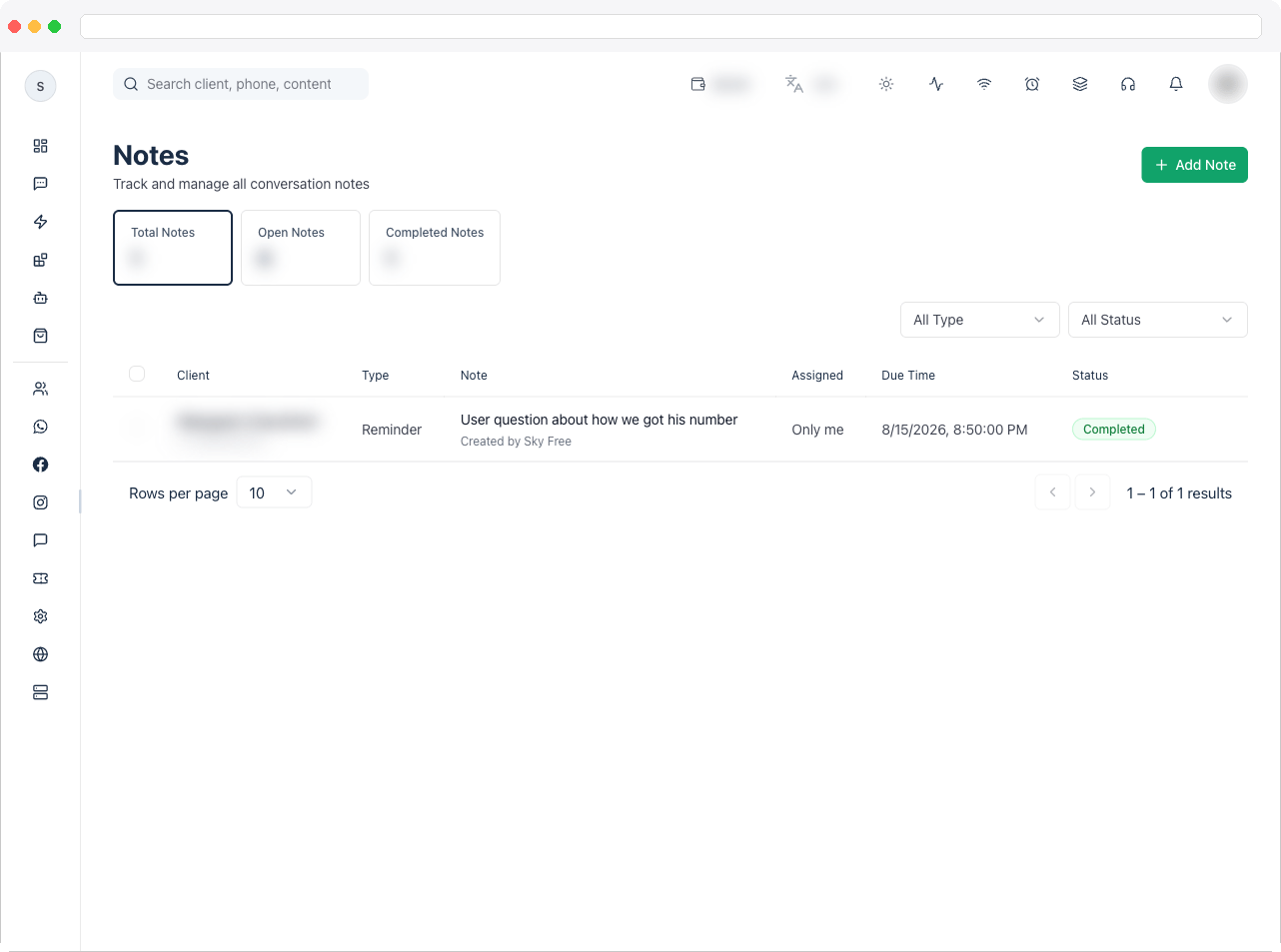
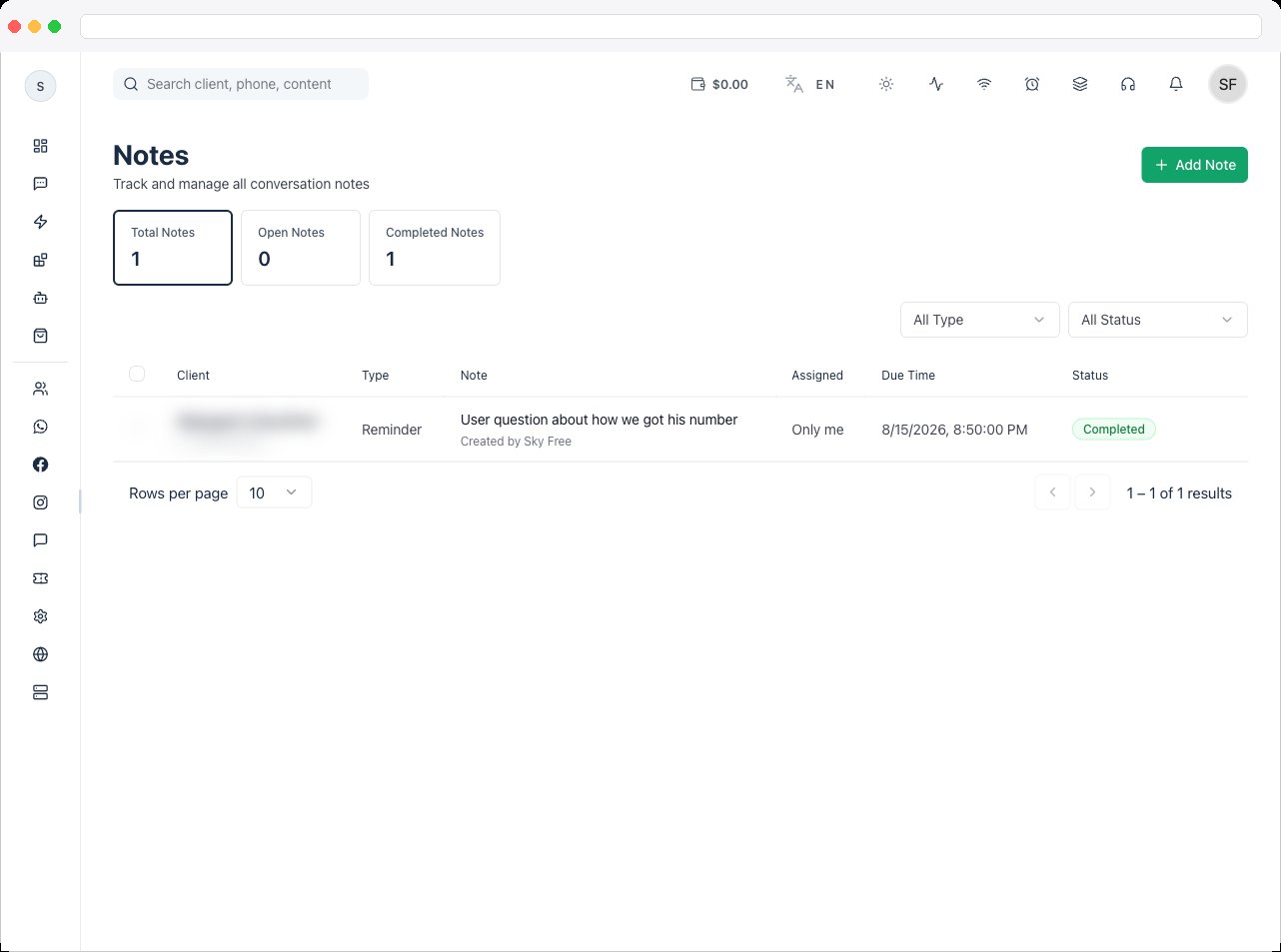
- See every note for the channel on the Notes page, with summary tiles for Total Notes, Open Notes, and Completed Notes
- Search by client, phone, content, or creator, and filter by Type and by status (Upcoming, Overdue, Completed, Canceled)
- Edit a note, Mark as Completed, Mark as Canceled, Open conversation, or View customer profile
- Select several notes to Mark as Completed or Delete them together
- Let an automation leave a note or reminder with the Create Note/Reminder step
Viewing the Notes page requires the
notes:view permission.How to use it
Add a note from a conversation
1
Open the conversation
Go to Inbox and select the conversation you want to annotate. Make sure the correct channel is active.
2
Open the note composer
In the conversation header, click Add Note.
3
Choose a note type
In the Add Note dialog, pick the Note Type that matches your intent — see the types below.
4
Write and save
Enter a focused note under Note Content and click Create Note. It appears instantly in the timeline for your team. To personalize it, use Add Variable — for example
{{contact.name}}.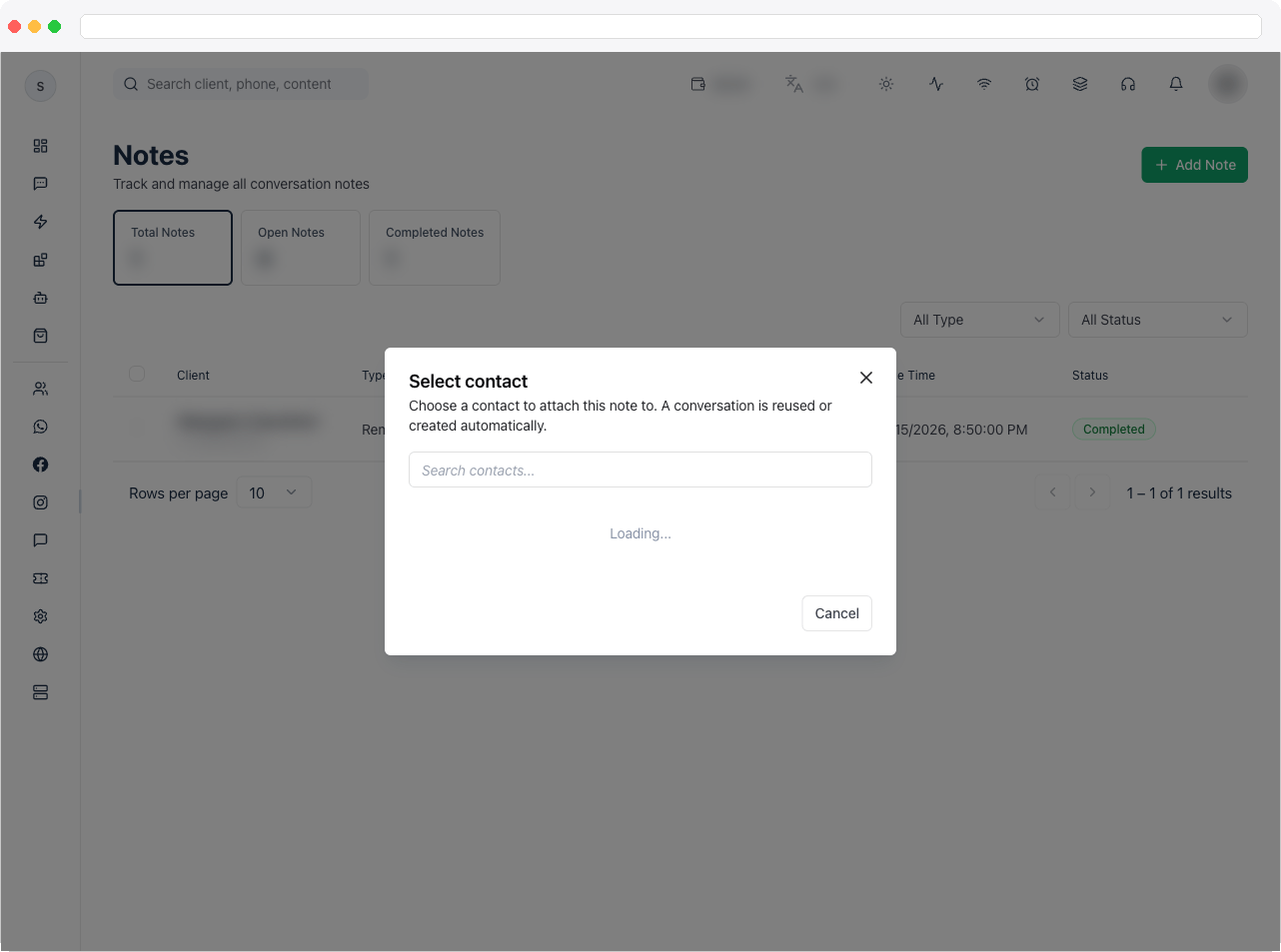
Add a note from the Notes page
- Go to Contacts → Notes and click Add Note.
- Under Select contact, choose the contact to attach it to. A conversation is reused or created automatically.
- Choose the note type, write the note, and set a due date and time for reminders.
- Save.
Manage a note’s status
Use a row’s actions to Mark as Completed when the task is done, or Mark as Canceled if it’s no longer needed. Both ask you to confirm. Delete permanently removes a note and can’t be undone.Note types
There are five note types. Choose the lightest type that gets the job done.Internal Note
The default type for handoffs and context sharing. Use it when you just need to leave a comment for the next person.Follow-up
Schedules a follow-up to the contact. Under Set Follow-up Time, choose a Date and Time. At that time, the contact receives your note as a follow-up template message on WhatsApp (“Selected contact will receive this follow-up template message on WhatsApp at the scheduled time.”), and you get the in-app reminder pop-up too. Pair it with assignment so ownership is clear.Set Reminder
Creates a timed alert on the conversation. When you select this type you configure:- Date — when the reminder should fire
- Time — exact time for the alert
- Assign Reminder To — pick one or more team members. Selected team members also receive the reminder alert and a WhatsApp notification.
Follow-up and reminder WhatsApp messages use the Note follow-up and Note reminder templates. The platform creates any that are missing when a reminder is due, and you can also create them yourself from WhatsApp → Templates → Predefined (the Notes group) — they must be approved by WhatsApp before messages can be delivered. See Templates.
Warning
For issues that need attention before any other action — escalations, compliance flags, or blocked-request cases. Use sparingly; if everything is a warning, nothing is.Warning notes are never shared with the AI Agent, even if the AI Agent has Read Notes enabled. The toggle is hidden for Warning notes.
Info
Lightweight reference that doesn’t require action. Good for preferences, account notes, or background that helps personalize future replies.AI can read this note
Each note has an AI can read this note toggle at the bottom of the Add Note dialog.- When the toggle is on, an AI Agent with the Read Notes capability enabled may silently read this note and use it as background context when replying to the customer. The agent never quotes the note or tells the customer notes exist.
- When the toggle is off (the default), the note is visible to your team only and the agent ignores it completely.
- Warning notes are always excluded — the toggle is disabled for them regardless of any setting.
The agent only reads notes if the Read Notes capability is enabled in Capabilities. The per-note toggle has no effect when that capability is off.
What Notes are
A Note is a short internal entry pinned to a conversation. It lives alongside messages but is visually distinct so your team can spot context quickly. Use Notes when you need to:- Hand off a conversation with context — “Customer requested a callback after 5 PM.”
- Record what was agreed — “Discussed pricing for Pro plan. Follow up next week with proposal.”
- Flag something for later — “Waiting for finance to confirm refund. Check back tomorrow.”
Where Notes appear
- Inside Conversation View — notes show in the message timeline with an icon and author name.
- In the conversation preview — the Inbox list can surface that a note was added (so teammates know context exists before opening).
- In assignment and handoff flows — when you reassign a conversation, add a note first so the next owner has the full story.
- The customer’s WhatsApp, Instagram, or Web Chat thread
- Campaign or template previews
- Contact exports (unless your workspace explicitly includes internal notes)
Who can see Notes
- All team members with Inbox access in that workspace and channel can view notes.
- Customers cannot see notes under any circumstance.
- Permissions follow your Team settings — if a teammate can open the conversation, they can read its notes.
Editing and lifecycle
- Notes are appended to the conversation timeline and remain with the conversation history.
- Treat notes as an audit trail — write them so a teammate reading next week still understands the context.
- If you need to correct a note, add a follow-up note clarifying the update (e.g., “Correction: callback is 6 PM, not 5 PM”) rather than relying on memory.
If your workspace restricts editing or deleting notes, the timeline is intentionally append-only to preserve a clear handoff history.
Notes vs Pipelines vs Activity Logs
New users often confuse these. Here’s the short version:- Use Notes when a human needs to leave context.
- Use Activity Logs to review who did what — see Team.
- Use Pipelines when you need to move a contact or deal through stages.
Best practices
- Add a note before every handoff. Even one line — “Tried to call, no answer. Customer asked to try again after 6 PM” — saves the next person from asking the customer to repeat themselves.
- Keep notes focused. One idea per note. Two short notes are easier to scan than one long paragraph.
- Pair notes with action. If a note describes a task, also set a Reminder or a Follow-up and make sure the conversation is assigned.
- Reserve Warnings for real urgency. If Warnings are rare, your team will actually notice them.
- Review notes before replying. Check the last 2–3 notes at the top of the timeline before you send a response.
Troubleshooting / Technical Notes
- “No conversation available for this contact.” A note has to be attached to a conversation. Choose a contact who has (or can be given) a conversation on the active channel.
- Reminders don’t notify me. Reminders alert you and the team members chosen under Assign Reminder To at the scheduled time — check that the date and time are in the future and that browser notifications are allowed.
- “Reminder time must be in the future”. Choose a date and time later than now.
- “This reminder has already triggered and can no longer be edited”. A reminder or follow-up can’t be changed once its time has passed. Create a new one.
- The contact didn’t get the follow-up on WhatsApp. Check that the Note follow-up template is approved in Templates and that the contact has a WhatsApp number.
- I can’t find a note. Clear the type and status filters, and search by client, phone, or creator.
- A note can’t be edited or deleted. Your permissions may restrict it, and the timeline is intentionally append-only for a clear handoff history.