

What is this?
Templates is where you create and manage WhatsApp message templates — pre-approved messages with optional variables that you use to start conversations and run campaigns. Each template is submitted to Meta for review, and only approved templates can be sent.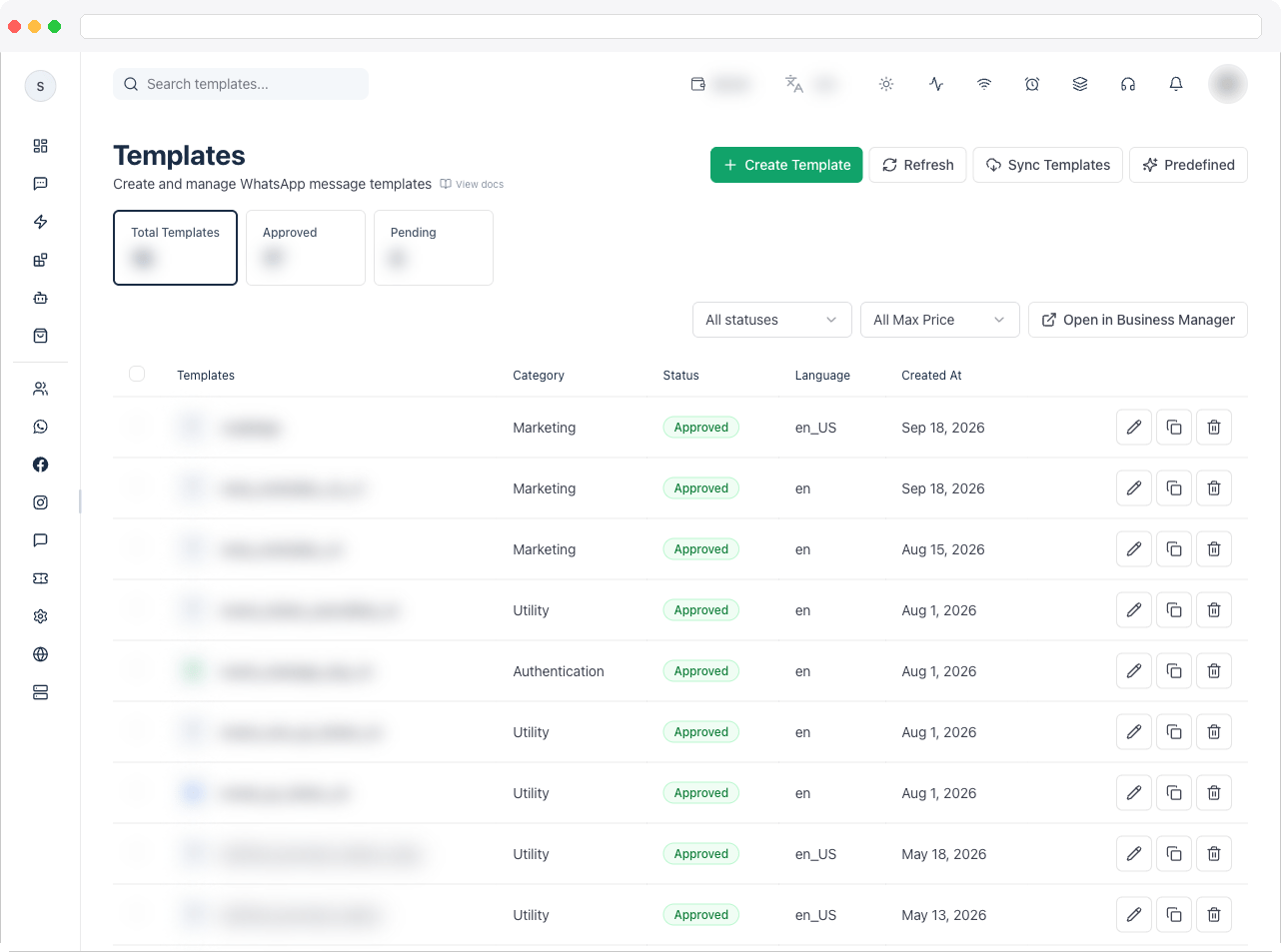
Templates require the
templates:view permission (and templates:create to create them), an active WhatsApp channel, and a plan that includes WhatsApp integration.What can I do here?
- See summary tiles: Total Templates, Approved, and Pending
- Search templates and filter by status, or by All Max Price, Has Max Price, and No Max Price
- Read each template’s Category, Status, Language, and Created At
- Create a template with Create Template, including Carousel templates with swipeable cards
- Open the Predefined template library to preview, customize, and create ready-made templates
- Sync Templates to pull the latest approval status from WhatsApp, and Refresh to reload the list
- Edit, Duplicate, or Delete a template
- Select several templates and Delete Selected
- Open in Business Manager to manage a template in Meta
How to use it
Understand a template’s structure
A template can include:Create a template
- Go to WhatsApp → Templates and click Create Template.
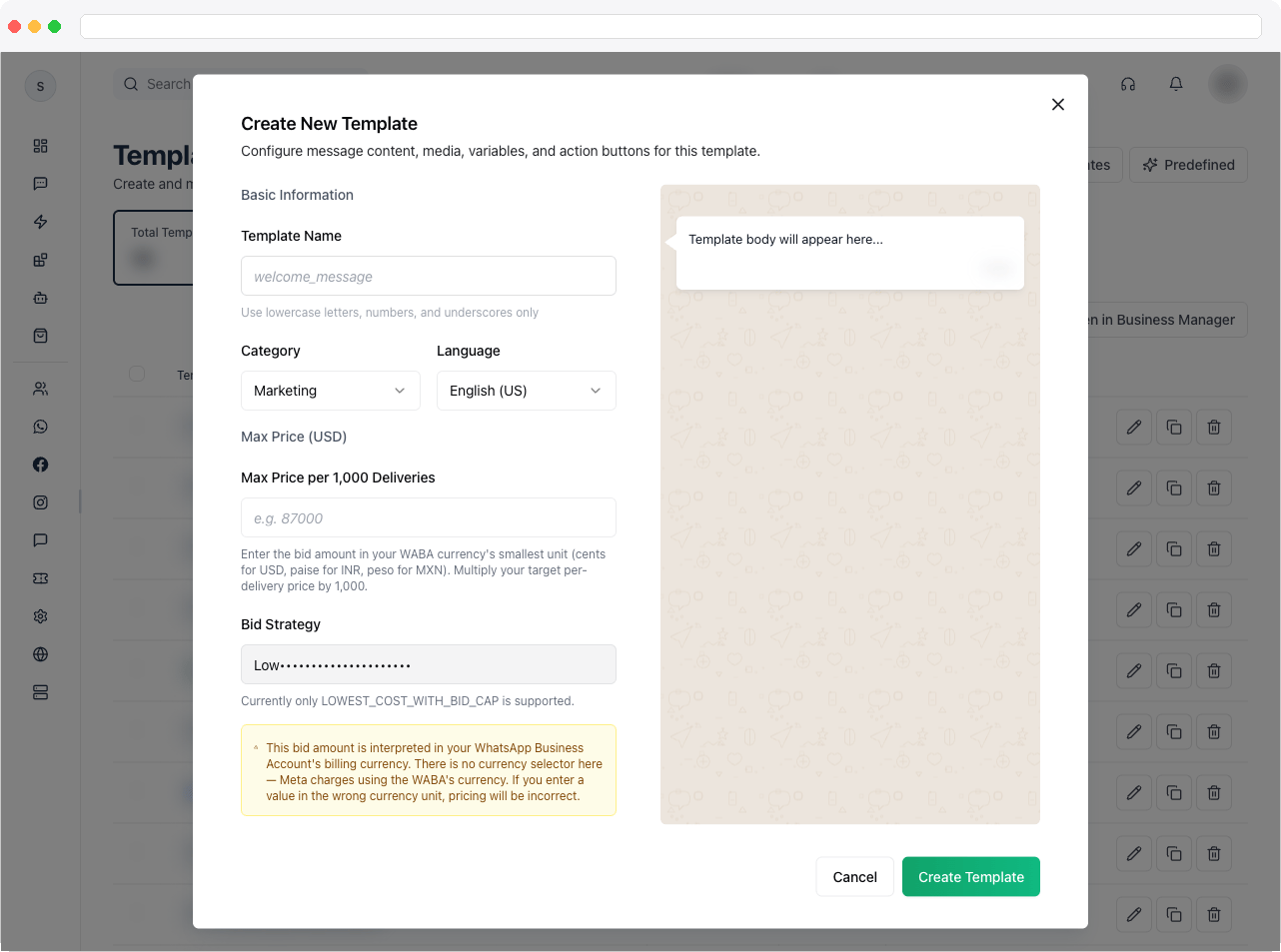
- Under Basic Information, enter a Template Name (lowercase letters, numbers, and underscores only), choose a Category, and choose a Language.
-
Under Template Content, choose the Media Type: Text Only, Image, Video, Document, or Carousel (shown only when the Category is Marketing), and upload the header media if needed.
-
Write the Body. Add variables as numbered placeholders, for example:
Then fill in Sample Values for Body Variables — Meta needs an example for each variable.
- Optionally add a Header and Footer.
- Under Action Buttons, click Add Button and choose Quick Reply, Visit website, Call phone number, or (for authentication templates) OTP Button.
- Check the live preview and the Template Guidelines, then submit the template for approval. Use Save as Draft if you want to finish later.
WhatsApp allows either up to 3 quick replies or up to 2 call-to-action buttons (max 1 phone number and 2 URLs). You can’t mix the two.
Create a carousel template
A carousel template is a message with swipeable cards. Carousel templates are Marketing only — if you change the category away from Marketing, the media type switches back to a text template.- In Create Template, set the Category to Marketing and the Media Type to Carousel.
- Write the Body — the message text shown above the cards.
- Under Carousel cards, choose the Card media type (Image or Video). All cards use the same type.
- Under Buttons on every card, click Add button and choose the button types (Quick Reply, URL Button, or Phone Button). Every card has the same buttons, up to 2 per card.
- For each card, click Upload image or Upload video, optionally add Card text (optional), and fill in the button text. If the card text has variables, add a Sample value for variable for each. A URL button can end with
{{1}}so each send can use a different value. - Use Add card and Remove card to have between 2 and 10 cards, then check the preview and submit.
A carousel template has no header, footer, or template-level buttons. If something is wrong, a Fix these before submitting list shows what to change. To send a carousel template, see Campaigns.
Create predefined templates
Click Predefined to open the Predefined template library. It lets you browse ready-made templates, preview each one, and create only the ones you need — they are submitted to WhatsApp for approval.- Pick a group tab: E-commerce, Events tickets & Booking, Notes, or Business.
- Click a template to preview it, and tick the checkbox of each one you want. Use Select all available or Clear selection for the whole group. Templates that already exist show an Added badge and can’t be selected again.
- If a selected template has a link button (such as Track order), check the Storefront URL. It is prefilled from your storefront settings and must be a valid https URL.
- Optionally use Customize template to edit the Header, Body, Variables sample values, Footer, and Buttons, then click Reset to undo. Required variables must stay in the body, numbered
{{1}},{{2}}, … with no gaps. Event, ticket and note templates have fixed wording and required variables, so they cannot be edited. Edited templates show an Edited badge. - Click Create selected to submit them. A message tells you how many were submitted.
Choose a category
Authentication templates are text-only. WhatsApp formats the body automatically, and you can add the security recommendation and a code expiration of 1–90 minutes.
Media limits
- Images: JPEG or PNG, up to 16 MB
- Videos: MP4 or 3GPP, up to 16 MB
- Documents: PDF, up to 100 MB
- GIF files are not supported
Set a maximum price (optional)
When your channel supports it, you can set a Max Price for a template as a bid cap per 1,000 deliveries, using the Lowest Cost with Bid Cap strategy. The amount is in your WhatsApp Business Account’s billing currency, in its smallest unit (cents for USD, paise for INR).Approval status
After you submit a template, WhatsApp reviews it — usually within about a day. Its status becomes:- Approved — ready to use in campaigns and conversations
- Pending — still under review
- Rejected — update it and resubmit
Manage templates
- Edit a template to change it and resubmit.
- Duplicate a template to start a new version from an existing one — this is the way to change an approved template.
- Delete a template you no longer need, or select several and click Delete Selected.
Use a template in a campaign
Create a campaign, choose an approved template, and map its variables to free text or contact custom fields.Troubleshooting / Technical Notes
Template issues
- The template isn’t approved yet, or was rejected in Meta review.
- The variable count or formatting is wrong.
- The category or language doesn’t match.
- The template is approved in Meta but not yet visible in the app.
Message delivery issues
- A message was sent but not delivered, or delivered but not read.
- Template messages fail while session messages still work.
- Media messages fail because of file format or size.
- The recipient’s phone number is wrong or badly formatted.
Common error areas
- Authentication or token issues
- Template restriction errors
- Rate-limit or throughput issues
- Invalid recipient or unsupported destination errors
- Media fetch or upload failures
Other checks
- “Media URL is required for image, video, and document templates.” Upload the header media before saving.
- “Verification code sample is required.” Authentication templates need a sample code.
- Body must be under 1,024 characters. Shorten the message.
- The Carousel option is missing. Carousel templates are Marketing only — set the Category to Marketing first.
- “Create selected” is disabled in the Predefined library. Select at least one template, fix any edited template (every variable needs a sample value, every button a label), and enter a valid https Storefront URL if a selected template has a link button.