

What is this?
Flows (under WhatsApp → Flows, titled WhatsApp Flows on the page) is where you create and manage WhatsApp Flows: multi-screen, interactive experiences — such as sign-up forms, appointment booking, lead capture, or surveys — that customers complete inside WhatsApp. Each answer a customer gives can be mapped to one of your contact custom fields. This page covers the flows list. You design the screens themselves in the flow builder — see Flow Builder.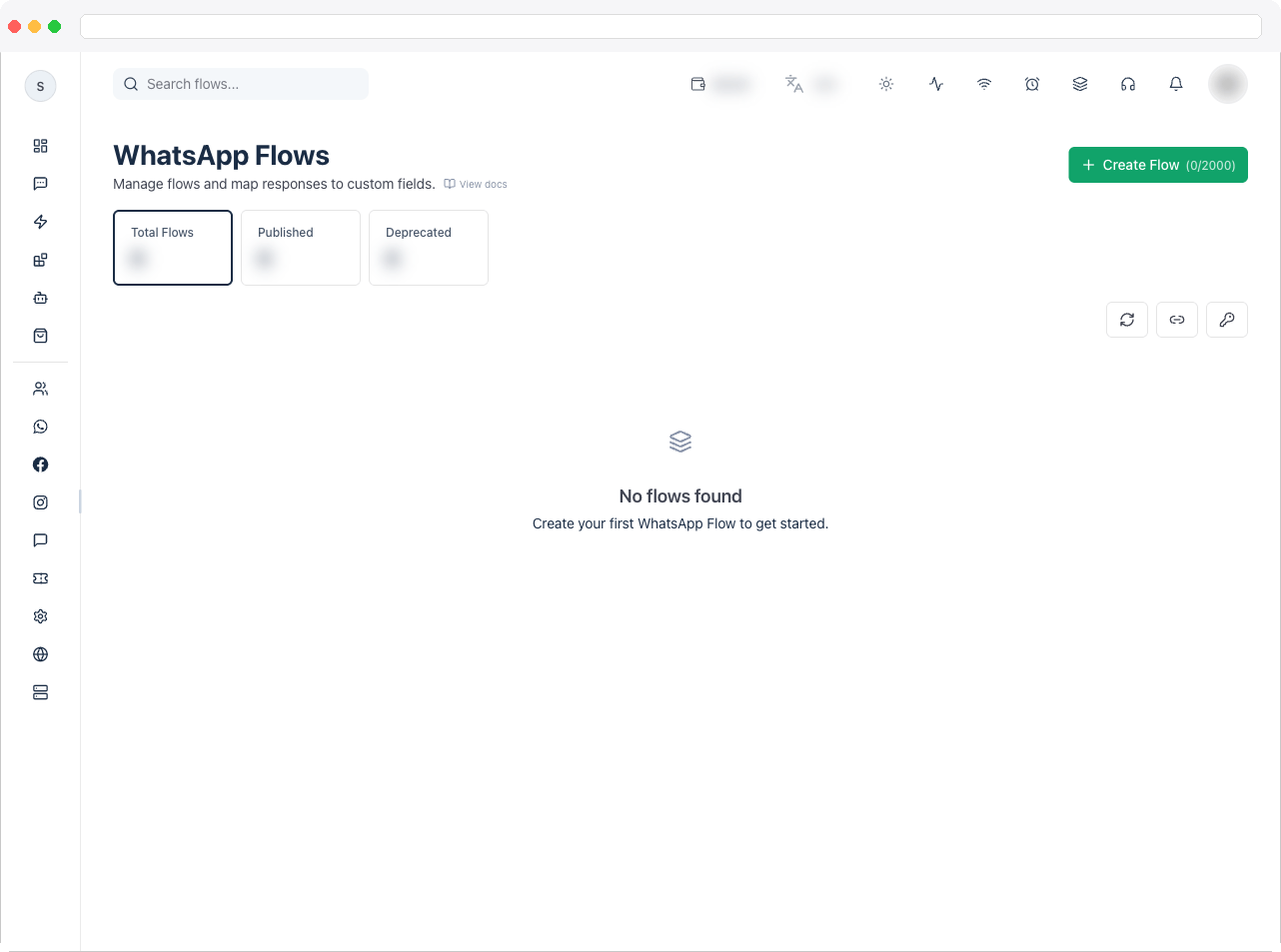
Viewing flows requires the
flows:view permission, an active WhatsApp channel, and a plan that includes WhatsApp integration. Creating a flow (including Clone) needs flows:create; saving in the builder, Publish, Deprecate, Delete, and Update Endpoint need flows:edit. The number of flows you can create depends on your plan — the Create Flow button shows how many you’ve used, for example (2/5).What can I do here?
- See summary tiles — Total Flows, Published, and Deprecated — and click a tile to filter the table by that status
- Search flows by name, flow ID, status, or category (the search box is in the page header: Search flows…)
- Create a flow with Create Flow, choosing a name and one or more categories
- Open a flow in the flow builder by clicking its row or its Edit icon
- Preview a flow the way customers see it, in WhatsApp’s own preview
- Clone a flow to make an editable draft copy
- Update Endpoint so a flow points at your workspace’s flow endpoint
- Publish a draft flow, Deprecate a flow you no longer want to use, or Delete a draft
- Refresh the list from WhatsApp, update the endpoint on every flow at once, or re-send your encryption key to WhatsApp
How to use it
Read the flows table
Flows are sorted with the most recently updated first. When you have more than ten, paging controls and a rows-per-page selector (10, 15, 20, or 50) appear under the table.
Version labels. A Flow JSON version of 7.3 or newer shows as plain
v7.3. Older versions show Legacy, and very old ones (2.1, 3.0, 3.1, 4.0, 5.0) show Frozen. A Data API version below 4.0 shows Legacy. Flows you build in the builder use Flow JSON 7.3 and Data API 4.0.
Endpoint state.
Create and build a flow
1
Click Create Flow
Go to WhatsApp → Flows and click Create Flow. If your plan’s flow limit is reached the button is disabled and its tooltip says Upgrade your plan.
2
Name it and choose categories
In the Create Flow dialog (“Provide the basic details to create a WhatsApp flow.”), enter a Name (placeholder Flow name) and tick one or more Categories: Sign Up, Sign In, Appointment Booking, Lead Generation, Contact Us, Customer Support, Survey, or Other. If you tick none, the flow is created as Other. A name is required.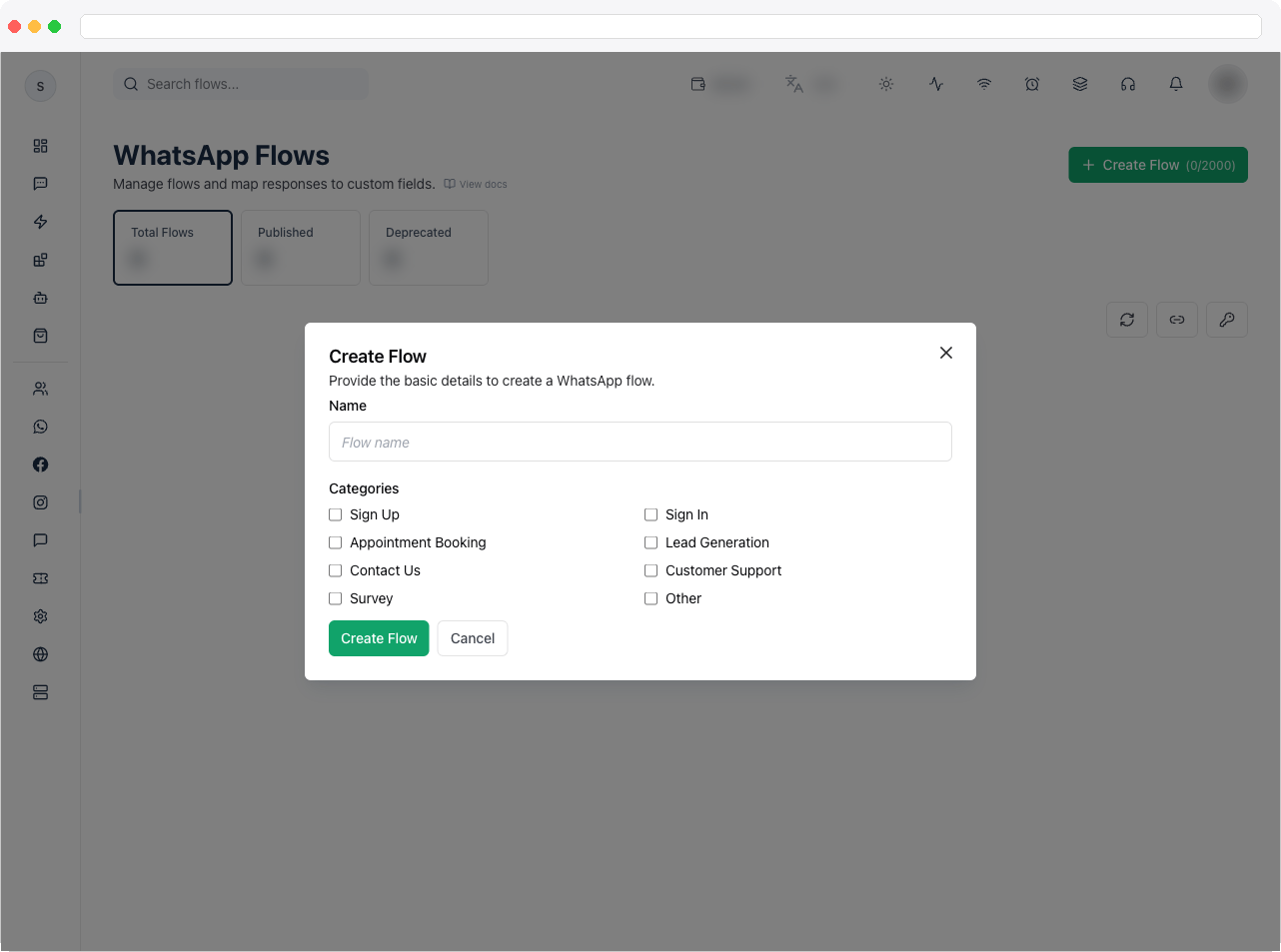
3
Design the screens
Click Create Flow in the dialog. The flow is created as a draft and the flow builder opens straight away so you can add screens and content. Note that a successful Save in the builder also publishes the flow — see Flow Builder.
4
Save, then preview
Click Save in the builder. WhatsApp checks the flow, and you return to the flows list. Click the Preview icon on the row to open WhatsApp’s preview in a new tab.
5
Publish
If the flow still shows DRAFT, click the Publish icon. A Flow Published message confirms it, and the flow can then be used in Send Flow automation steps.
Which actions you see on a row depends on its status. Drafts have Publish and Delete. Published flows have Deprecate. Deprecated flows are read-only: Edit, Clone, and Update Endpoint are disabled and clicking the row does nothing. Published flows open in the builder with their structure locked — see Flow Builder.
Row actions
Click the checkbox at the start of a row to select flows. A bar shows how many are selected with Select All (or Deselect All) and Cancel. While anything is selected, clicking a row toggles its selection instead of opening it. Selecting is only for choosing rows — there are no bulk Publish or Delete actions.
The three icon buttons at the top
Next to Create Flow are three icon-only buttons (they have no text label):Troubleshooting / Technical Notes
- “No Preview URL.” WhatsApp did not return a preview link for that flow. Save the flow in the builder and try again.
- The Create Flow button is greyed out. You’ve reached your plan’s flow limit. The tooltip shows how many you’ve used (for example
Used: 5/5). - “Create Failed” when creating. A name is required, or WhatsApp rejected the request — the message shows the reason.
- “Publish Failed.” WhatsApp validates a flow when you publish it, and the message lists what it found, for example the error type, the message, and the line and column in the flow. Open the flow in the builder, fix the problems, save, and publish again.
- A flow I want to change is published or its structure is locked. Published flows can’t have screens changed. Click Clone, edit the draft copy, then publish it. See Flow Builder.
- A deprecated flow won’t open. Deprecated flows can’t be edited, cloned, or have their endpoint updated. Create a new flow instead.
- Send Flow doesn’t list my flow. The Flow picker in Send Flow only lists published flows. Publish the flow first, then click Refresh in the step.
- The Endpoint column says Missing or Mismatch. Click Update Endpoint on that row, or use the link icon at the top to fix every flow at once.