

What is this?
Campaigns is where you send an approved WhatsApp template to a group of your contacts — immediately or on a schedule — and then follow how many messages were delivered, read, or failed.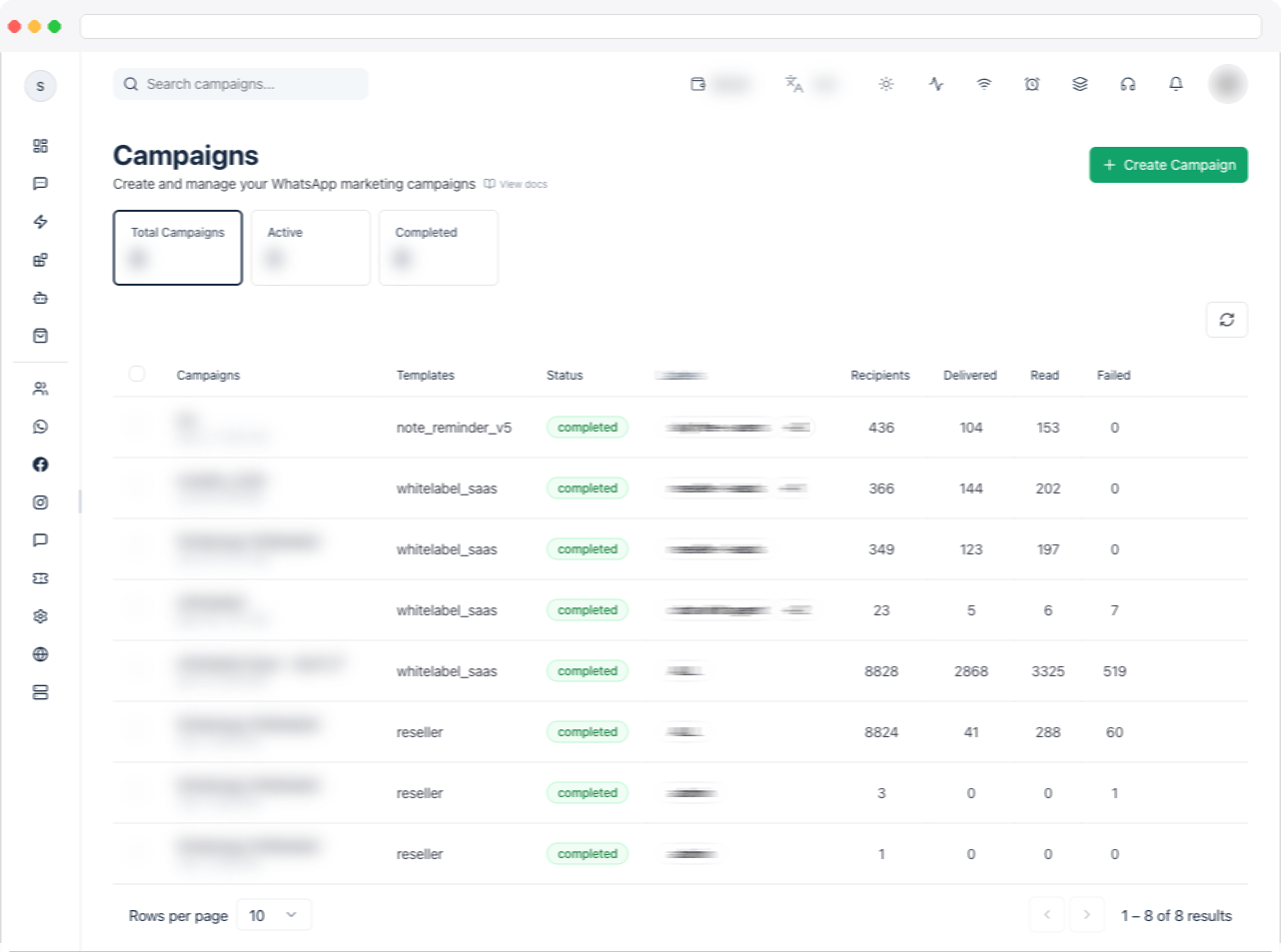
Campaigns require the
campaigns:view permission, an active WhatsApp channel, and a plan that includes WhatsApp integration. A campaign always sends an approved template — create one first in Templates.What can I do here?
- See summary tiles: Total Campaigns, Active, and Completed
- Search campaigns by name
- Read each campaign’s template, Status, Labels, Recipients, Delivered, Read, and Failed counts
- Create a new campaign with Create Campaign — the dialog shows an Estimated cost before you send
- Open the Calculate charges calculator to estimate WhatsApp message charges by country, category, and volume
- From a campaign’s row menu: View Details, Pause, Resume, Resend (failed messages), Cancel, or Export
- Select multiple scheduled campaigns and Cancel them together
- Send a carousel template, with media and values for each card
- Open a campaign’s analytics for delivery rates, daily performance, and error details
How to use it
Create a campaign
- Go to WhatsApp → Campaigns and click Create Campaign.
- Under Campaign Details, enter a Campaign Name and an optional Description for your team.
-
Under Template Selection, choose an approved Template. Use the search box to find it, and check the message preview.
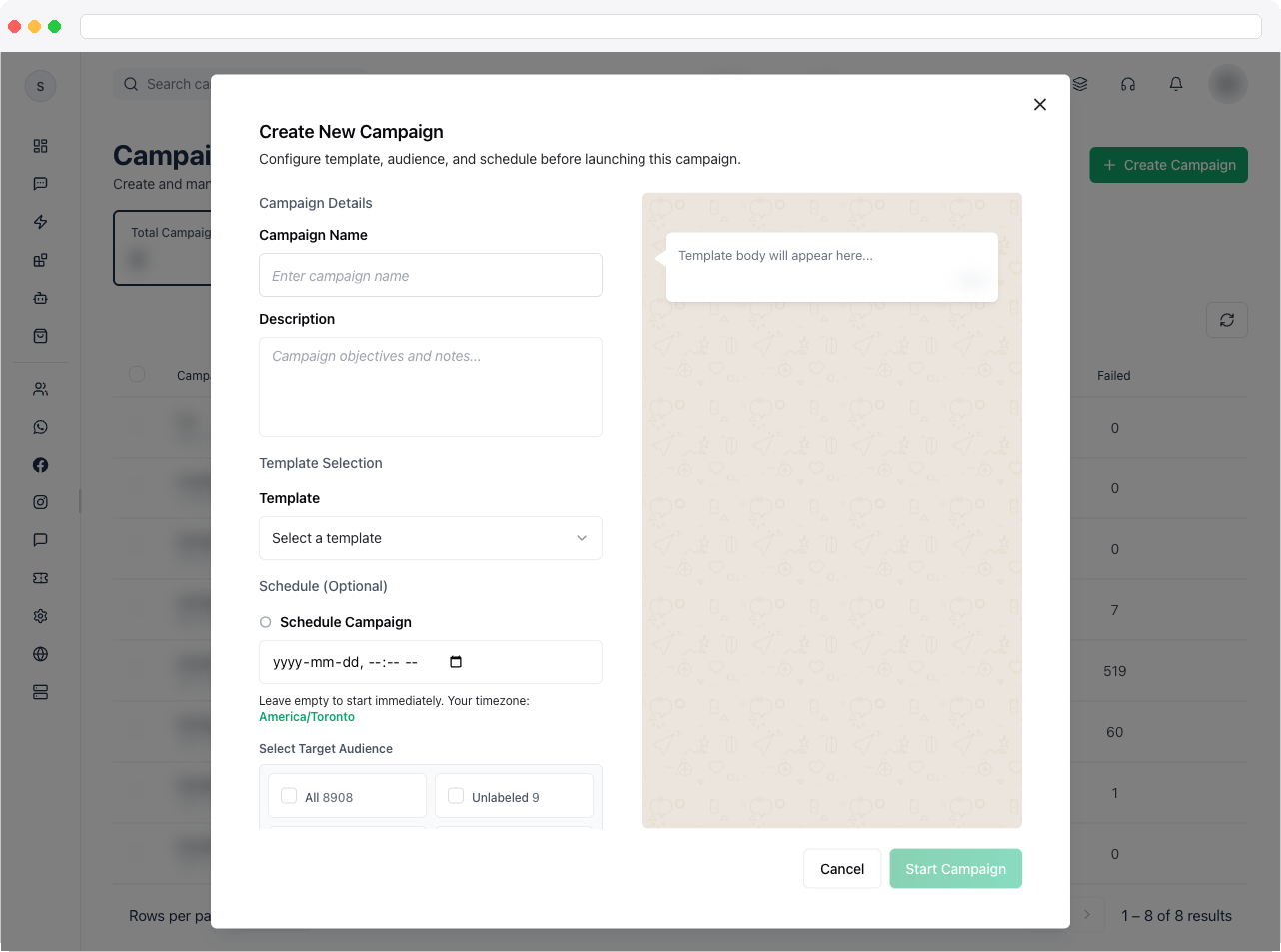
- If the template has variables, fill in Template Variables. For each one, use Free Text, or Custom Field so the value is pulled from each contact’s data (the default value is used if a contact’s field is empty). If the template has a document header, upload it here. Enter Button URL Values for any dynamic URL buttons.
- Under Select Target Audience, choose All contacts, Unlabeled contacts, or one or more labels. Contacts who have unsubscribed are excluded by default — turn on Include Unsubscribed only if you have the right to message them.
- Optionally set Schedule (Optional). Leave it empty to start immediately. The time uses your own timezone.
- Check the cost line at the bottom of the dialog (see below), then click Start Campaign — or Schedule Campaign if you set a time.
Check the estimated cost
Once you’ve chosen a template and an audience, the bottom-left of the Create New Campaign dialog shows the estimated cost of the send, priced per destination country, with the number of recipients (for example Estimated cost followed by the amount and “10 recipients”). While it is calculating it says Estimating cost…. What you see next depends on how the channel is billed — see Channels.- Credit line (through wallet)
- Direct (pay Meta)
A second line shows your Wallet balance.
- If the balance can’t cover the estimate, the line adds Not enough balance, the text turns red, and Start Campaign (or Schedule Campaign) is disabled. Recharge your wallet from the Wallet tab (see Transactions), or choose a smaller audience.
- If the line adds Credit line is not attached yet, the number’s credit line isn’t active, so the campaign can’t be created. Open the WhatsApp card on Channels and use Retry next to the credit line status.
Estimate WhatsApp charges with the calculator
The WhatsApp charges calculator lets you estimate what WhatsApp will charge for a number of messages, before you build a campaign. It is a pop-up, not a separate page.- Go to WhatsApp → Campaigns and click Calculate charges, next to Create Campaign. [SCREENSHOT: campaigns-calculate-charges-button — the Campaigns page header with the Calculate charges button beside Create Campaign]
-
If your platform offers credit line billing, choose how you want to see prices with the Credit line / Direct (pay Meta) switch. A note under the switch explains each mode:
- Direct (pay Meta) — Meta’s own rates, billed by Meta to your payment method. No markup and no wallet needed.
- Credit line — Meta’s rate plus the platform markup, charged from your wallet.
- Pick the Destination country. It starts on the country of your channel’s WhatsApp number; if that can’t be worked out, it uses the country of your browser’s language, and otherwise the United States.
- Pick the WABA currency — the billing currency of your WhatsApp Business Account. It starts on your account’s currency when known, and otherwise falls back to your wallet currency, the destination country’s currency, USD, or the first currency on the rate card. Only currencies that exist on the rate card are listed.
- Enter the number of Messages, or drag the volume slider (up to 1,000,000). It starts at 10,000.
-
Read the table. It has one row per category — Marketing, Utility, Authentication, Authentication International, and Service:
The last row, All categories, adds up every category. A category shows No active rate when the rate card has no price for it.
The calculator uses the rate card your platform administrator maintains — see WhatsApp Credit Line Pricing. Charges are for the same number of messages in every category, using the rates active today. The same calculator is on the public Pricing page of your platform, under Estimate your WhatsApp messaging cost → Open pricing calculator; there it starts on the platform’s default billing view and a guessed country, since you aren’t signed in to a channel.
Send a carousel template
If you choose a carousel template, the dialog adds a Carousel cards section and a card preview. Each card needs media, and values for any variables in its text or button links. For every card:- Media — the card uses the file saved with the template (Using the file saved with the template.). Click Use a different file to upload another image or video for this campaign only. If the template has no file for the card, Upload a file for this card. is required.
- Card text variable — enter a value for each variable in the card text.
- Link value for button — enter a value for each URL button that has a variable.
Manage a running campaign
- Find the campaign in the table.
- Open its row menu and choose Pause to stop sending (available while a campaign is active or processing), Resume to continue a paused campaign, or Cancel to cancel a scheduled one. Only scheduled campaigns can be cancelled in bulk. A campaign that is already sending can’t be cancelled — pause it instead, because cancelling wouldn’t stop messages that are already queued.
- If a campaign was paused automatically, hover over its paused status to see the reason.
Resend failed messages
When a completed or failed campaign has failed messages, open its row menu and choose Resend. A new campaign is created for only the recipients whose message failed, and a Resend started message tells you how many recipients it includes. The new campaign shows a Resend label. If more failed recipients remain than one resend can cover, the message says so — resend again once the new campaign finishes.Review campaign performance
Click View Details on a campaign to open Campaign Analytics, and use Export to download the campaign report. Its tabs are:- Campaign Details
- Performance
- Error Analysis
- Target Audience
The campaign’s Type, Status, API Type, Campaign Type, Template, Language, Created date, whether it was Scheduled or Immediate, and its Description.
Troubleshooting / Technical Notes
- “Please select a template.” Choose an approved template. If the list is empty, create or sync templates in Templates.
- “Please select at least one label.” Pick an audience — All, Unlabeled, or specific labels. Manage labels in Labels.
- Recipients is 0. The audience may be empty, or everyone in it is unsubscribed. Check the label and the Include Unsubscribed setting.
- The Carousel cards section won’t let me start. Every card needs media and a value for each variable and URL button. Upload a file for any card marked Upload a file for this card..
- No Resend option in the menu. It appears only for campaigns with status completed or failed that have at least one failed message.
- Resume fails with an error. The error message comes from WhatsApp — for example, the template may still be paused on WhatsApp. Check its status in Templates.
- Start Campaign is greyed out and the cost line is red. Your credit line wallet can’t cover the estimate (Not enough balance) or the credit line isn’t attached yet. See “Check the estimated cost” above.
- The calculator says “Pricing is not available right now.” The rate card couldn’t be loaded. Close the calculator and try again; if it keeps happening, contact your platform administrator.
- A category shows “No active rate”. The rate card has no price for that category in your country or region. Ask your platform administrator to add it.
- “Only a scheduled campaign can be cancelled. Pause a running campaign instead.” Cancelling only works before a campaign starts sending. Use Pause on a running campaign.
- A campaign shows Failed with a reason instead of staying on Processing. When a campaign can’t send at all — nothing to deliver, or every send failed — it now ends as failed with a reason you can read, and any unspent wallet hold is returned.
- Many failed messages. Open Error Analysis for the error codes. See Templates for common causes.
Common error codes
Failed messages show WhatsApp’s error code. Codes marked temporary are retried automatically; permanent ones are not, because retrying won’t help.Related docs
- Templates
- Labels
- Contacts
- WhatsApp overview
- Channels — billing type and credit line status