

What is this?
The Knowledge Base is where you write and organize the help content shown inside your web chat widget — grouped into categories, each containing articles. It powers the Help Center layout so visitors can find answers without starting a chat.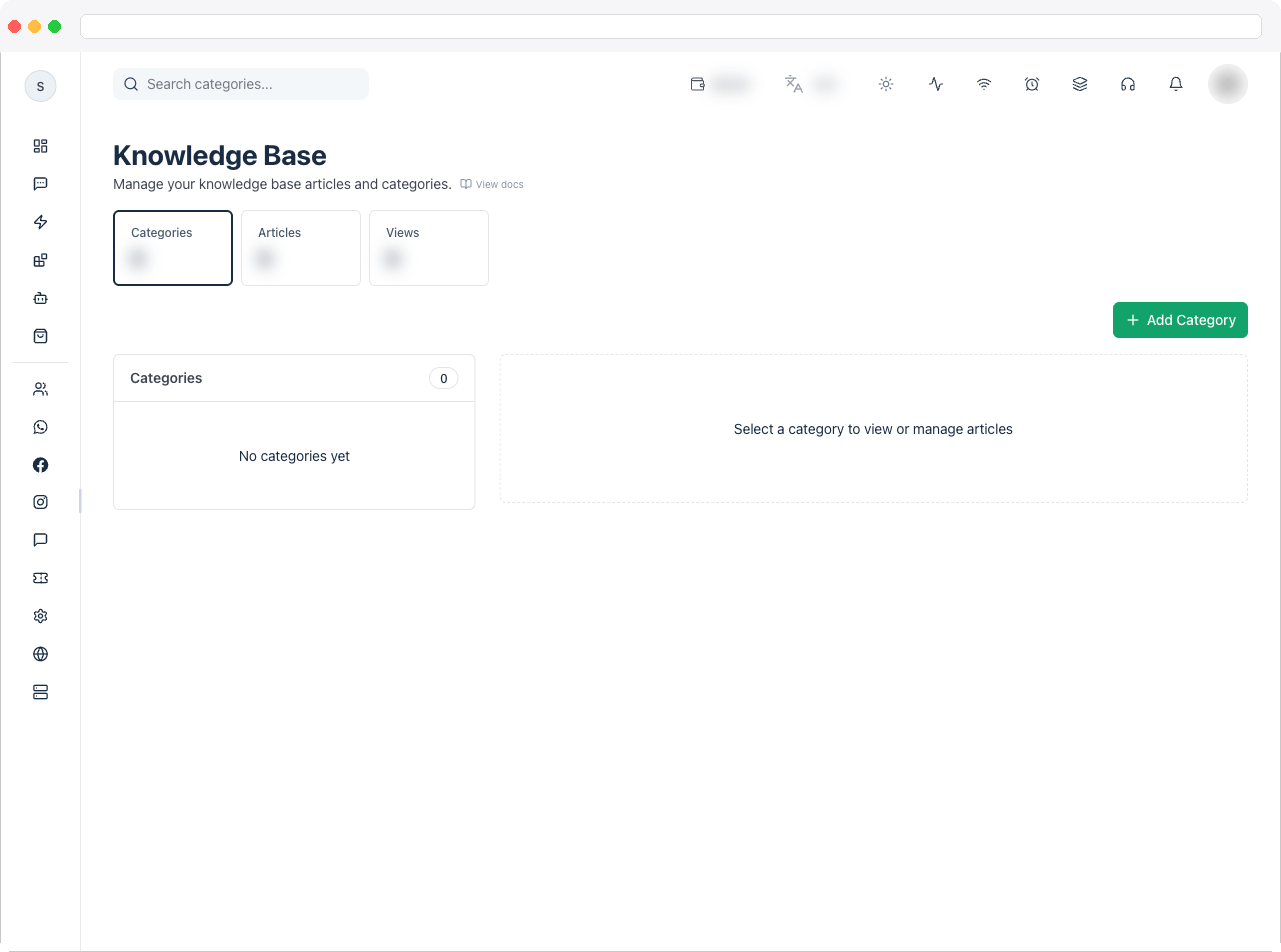
The Knowledge Base is a plan feature and needs a saved Web Chat widget on your active channel. Without them, the page shows an upgrade or setup message.
What can I do here?
- See summary counts for Categories, Articles, and Views
- Search categories and articles
- Add, edit, and delete categories
- Add, edit, and delete articles inside a category
- Write an article directly in Markdown, or point it to a Markdown file by URL
- Publish article to make it visible in the widget
How to use it
Create a category
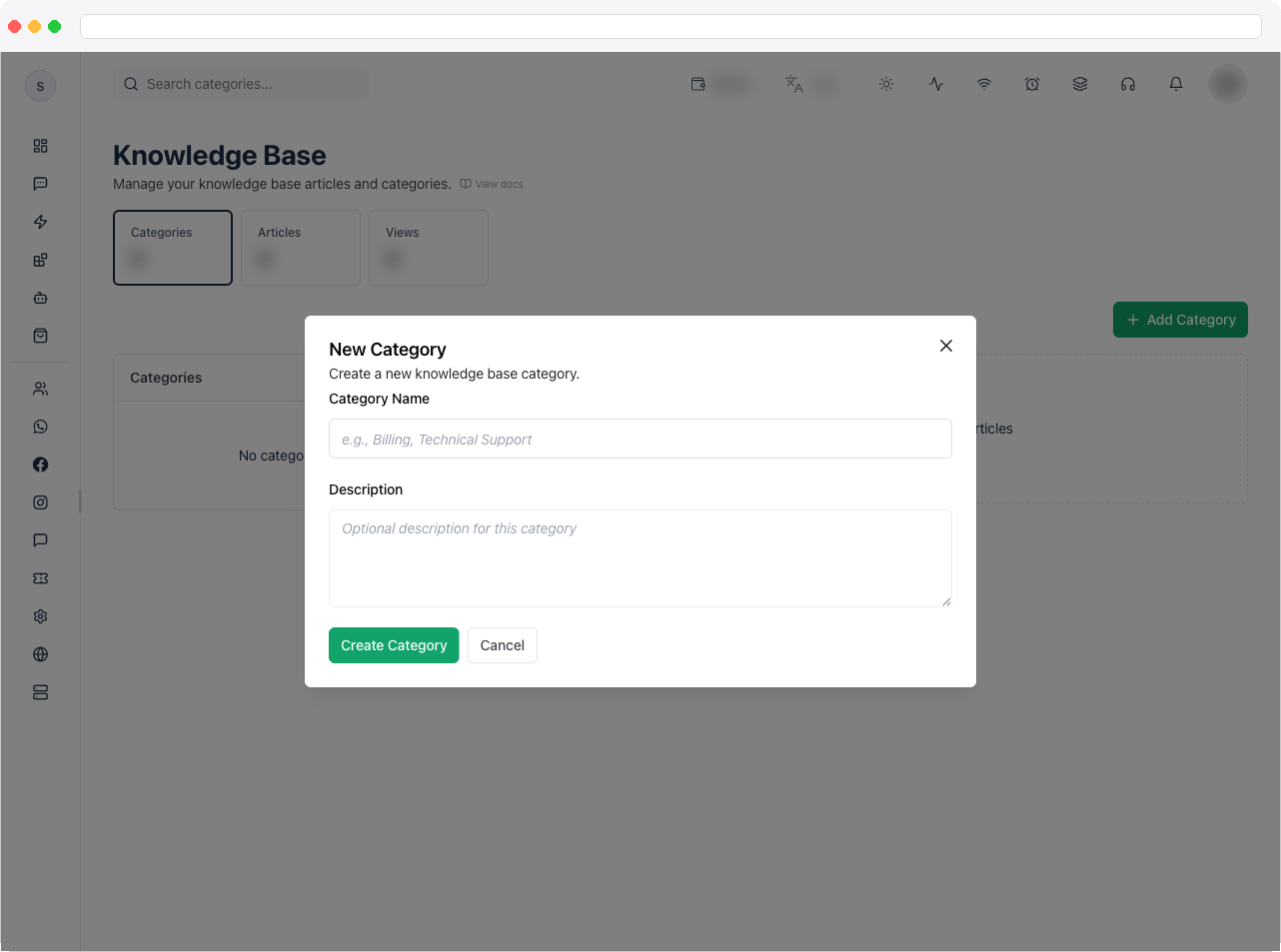
- Go to Web Chat → Knowledge Base and click Add Category.
- Enter a Category Name — for example “Billing” or “Technical Support” — and an optional Description.
- Save the category.
Add an article
- Select a category, then click Add Article.
- Enter a Title.
- Choose a Content Type:
- Direct Content — write the article in the Content box. Markdown is supported.
- Markdown URL — paste the URL of a publicly accessible
.mdfile, such as a GitHub raw URL.
- Turn on Publish article when it’s ready for visitors, then save.
Troubleshooting / Technical Notes
- “Category name is required,” “Title is required,” or “Content is required.” Fill in the missing field before saving.
- “Markdown URL is required.” Enter a URL when the content type is Markdown URL. The file must be publicly accessible.
- An article isn’t visible in the widget. Check that Publish article is on, and that the widget uses the Help Center layout with a category linked under Help Categories.
- “No articles in this category.” Select a category and click Add Article.