

What is this?
The Migration tab imports your data from another supported platform into this workspace, so you don’t start from an empty account.What can I do here?
- Choose a migration source (the platform you’re moving from)
- Import WhatsApp Number, Contacts, Contact Enrichment, Labels, Custom Fields, and/or Team Members
- Watch progress in real time and Cancel while it runs
How to use it
1
Choose the source
Under Import from another platform, choose a migration source from the dropdown. Sources are set up by your platform administrator — if none are listed, ask your admin to configure one.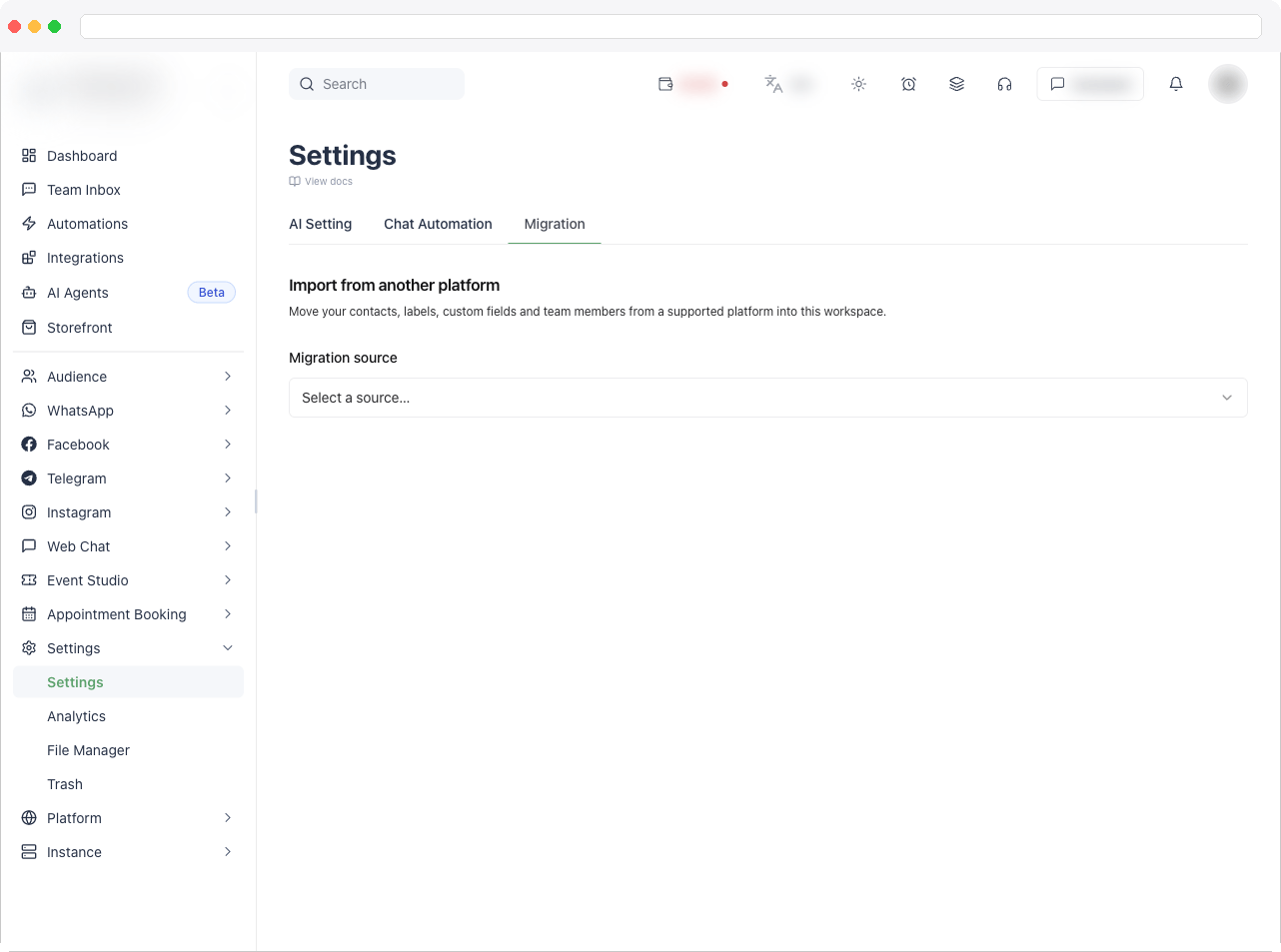
2
Enter the API key
Enter your API key for that source platform.
3
Choose what to import
Under What to import, tick the data to bring in.
4
Start the import
Click Start Import. A progress panel shows items processed, succeeded and failed, with a Cancel option while it runs.
5
Check the result
When it finishes, a completion message says how many items were imported. Any errors are listed below the progress bar.
This tab offers the general “Import from another platform” import. Importing a single specific user account isn’t offered here.
Troubleshooting / Technical Notes
- No migration sources are listed. Your platform administrator sets these up — see Migration.
- The import stopped with errors. The errors are listed under the progress bar. Fix the cause (for example an invalid key) and run it again.
- Some items are missing. Check the failed count in the progress panel and the errors listed under it.