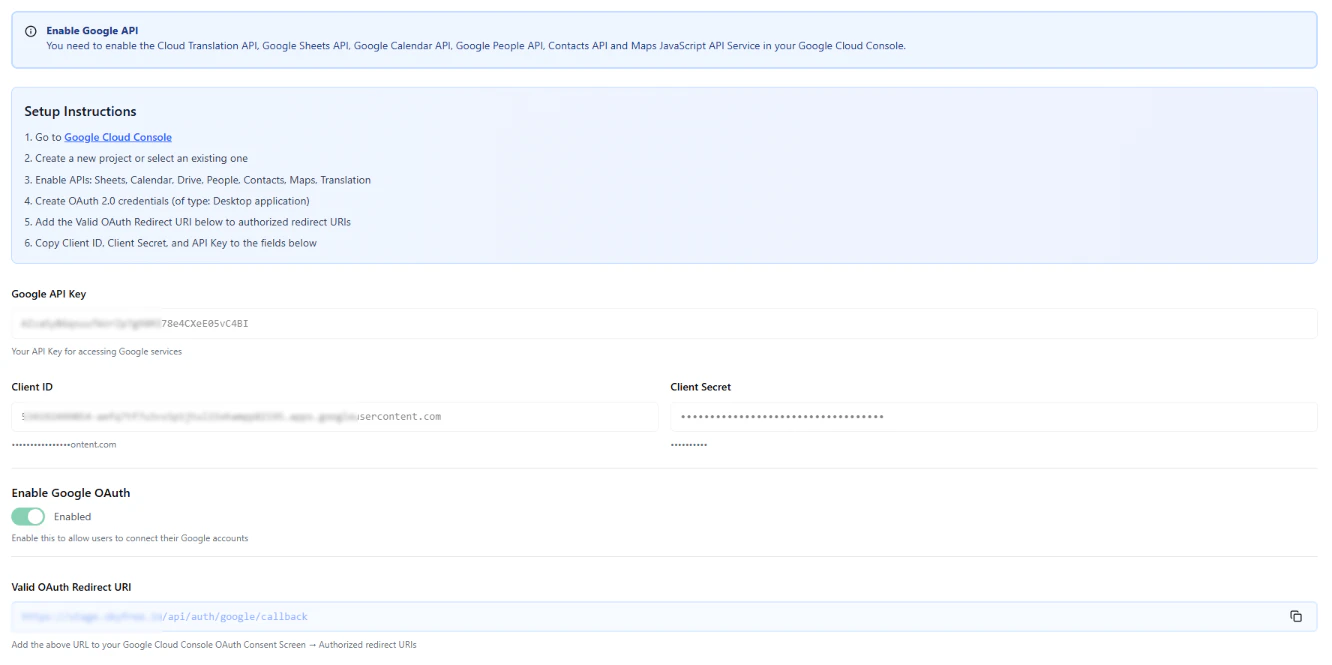
The Google API Integration page allows you to connect your platform with Google services using OAuth authentication. This enables users to securely link their Google accounts and use features such as Google Sheets, Calendar, and Contacts within the platform.
This integration is essential for automation, data synchronization, and workflow enhancements.
What This Is Used For
Once configured, users can connect their Google accounts to enable:
- Google Sheets → read/write data for automation and syncing
- Google Contacts → import and sync contacts into the platform
- Google Calendar → create and manage events via automation
- User Profile Access → fetch basic user information
These integrations help extend platform capabilities and enable real-time workflows.
Required OAuth Scopes
The following Google OAuth scopes are required for full functionality:
These permissions are required for the platform to interact with Google services on behalf of the user.
Step 1: Go to Google Cloud Console
Open: https://console.cloud.google.com/
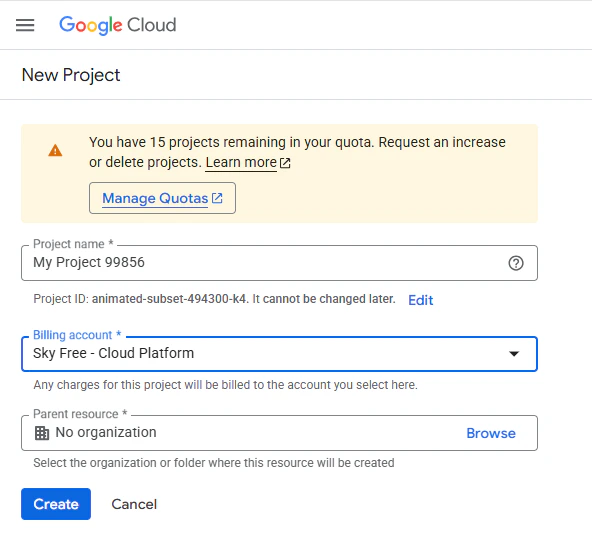
Step 2: Create or Select a Project
- Create a new project OR Select an existing project
Step 3: Enable Required APIs
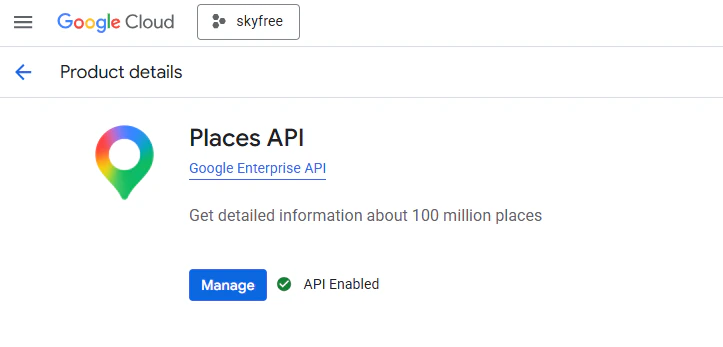
Go to APIs & Services → Library and enable:
- Google Sheets API
- Google Calendar API
- Google People API (for contacts)
- Google Maps API (for Inbox)
- Google Translate API (for Inbox)
Step 4: Complete OAuth Consent Setup and Verification
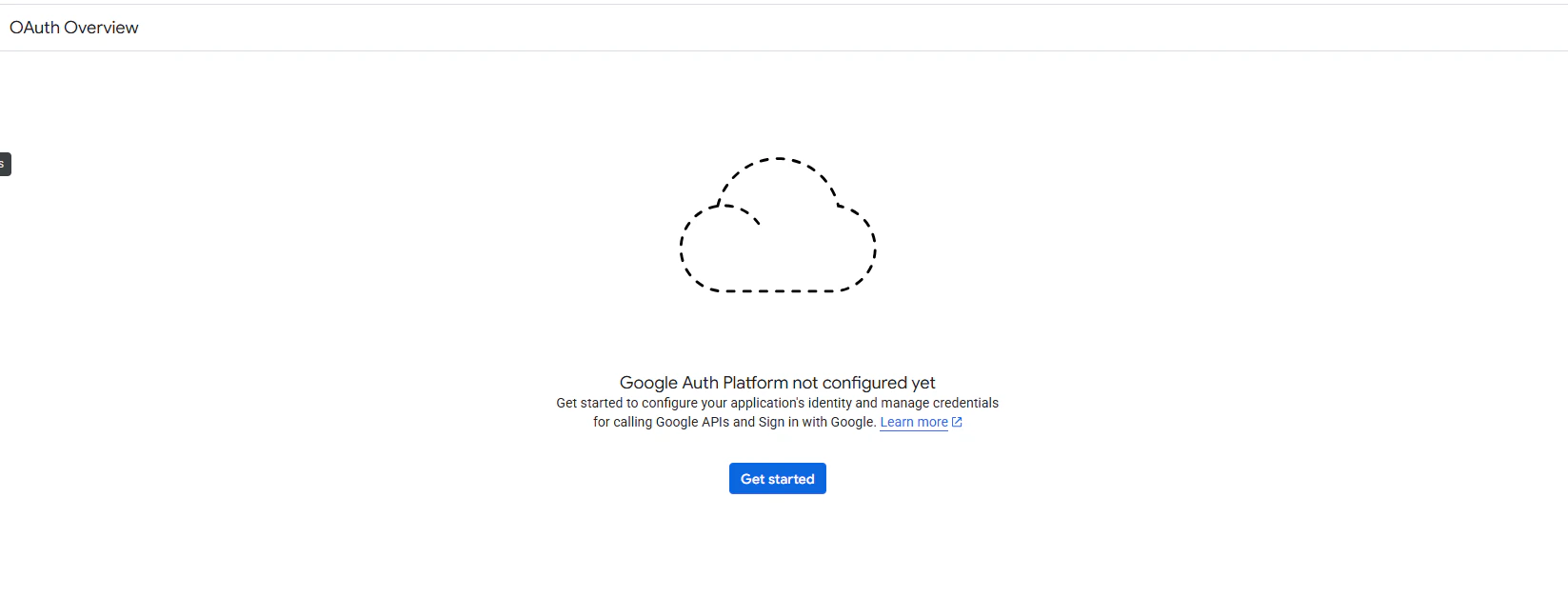
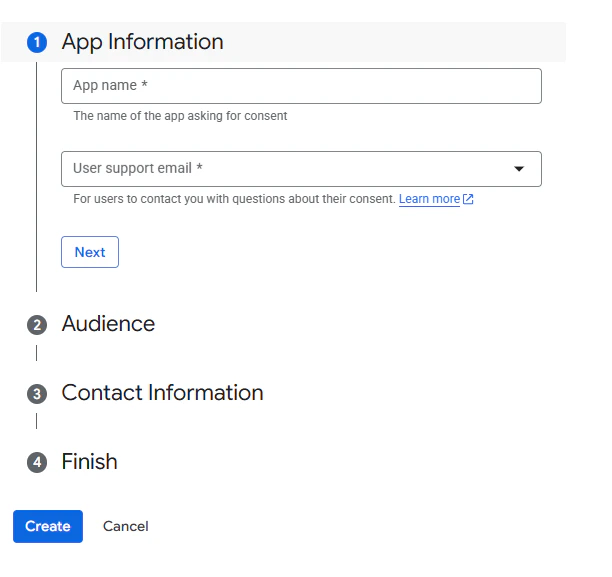
After creating your project, you must fully configure the OAuth consent screen in the Google Cloud Console.
Go to APIs & Services → OAuth consent screen
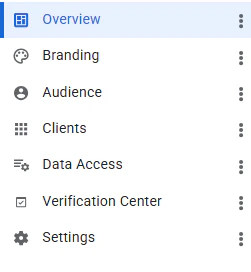
Ensure that all required sections are completed, including:
- Branding (application name, logo, support email)
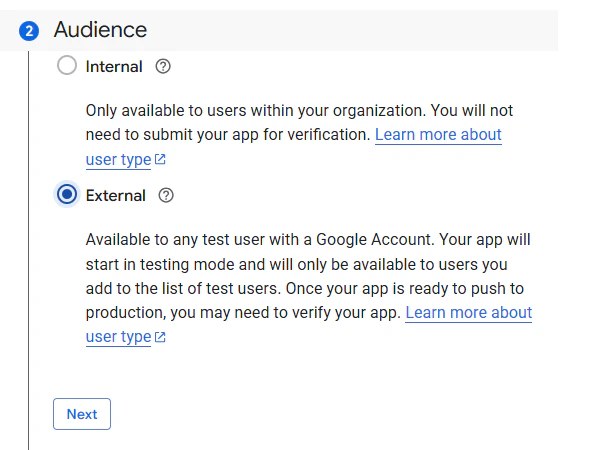
- Audience (internal or external users)
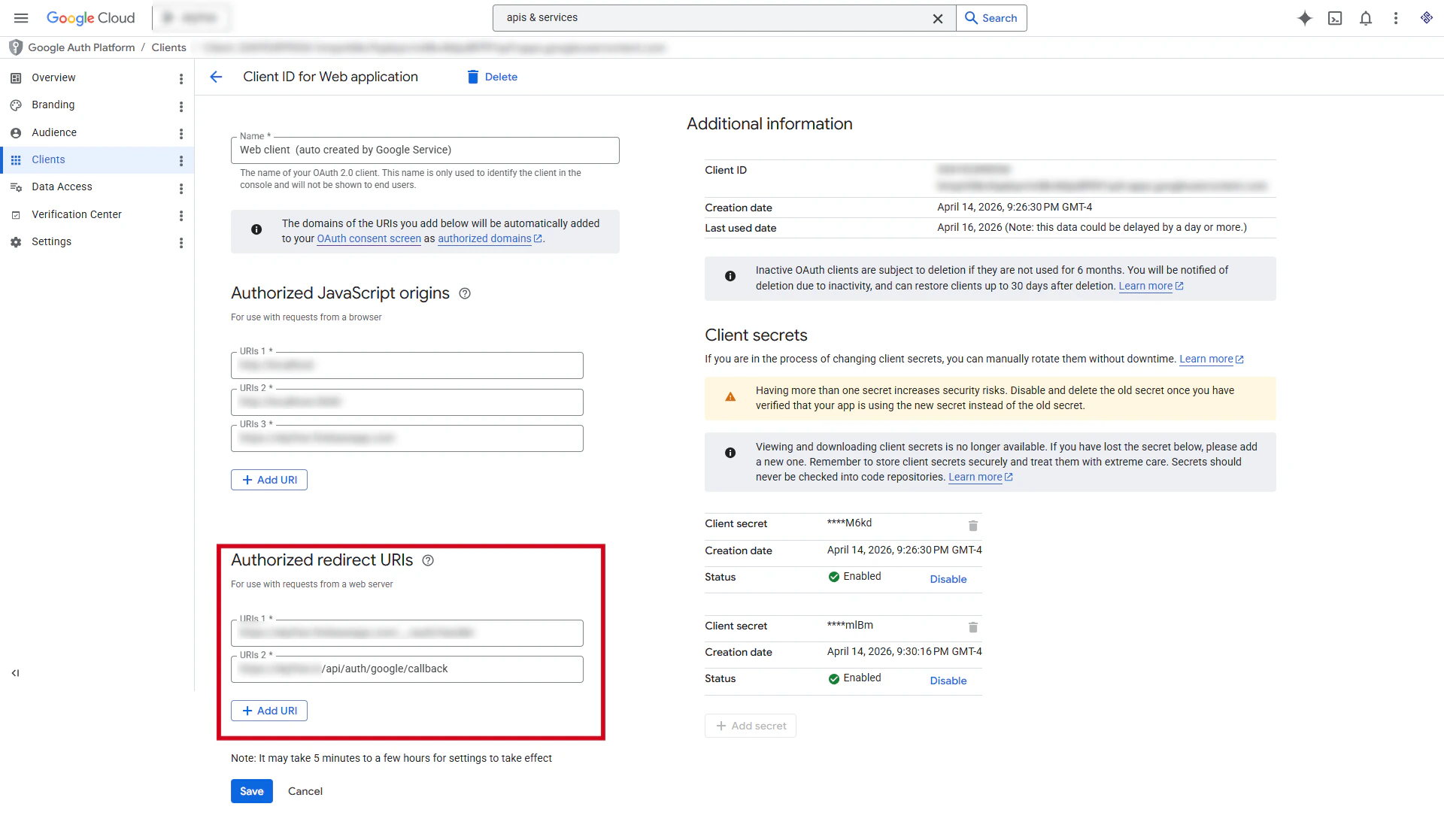
- Clients (OAuth client configuration) - Refer Step 5
- Data Access (required scopes and permissions)
- Settings (general app configuration)
Once all sections are properly configured, proceed to the Verification Center and submit your application for verification if required.
Verification is mandatory when using sensitive scopes such as Google Sheets, Contacts, or Calendar. Until verification is approved, access may be limited to test users only.
Step 5: Create OAuth Credentials
Go to APIs & Services → Credentials
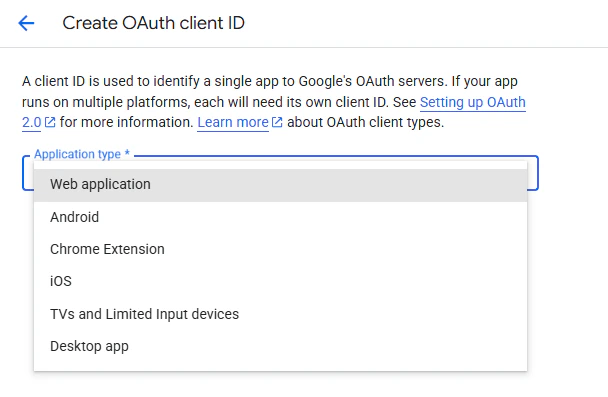
- Click Create Credentials → OAuth Client ID
- Select:
Step 6: Copy Credentials
After creating credentials, copy:
- Client ID
- Client Secret
- API Key (from credentials section)
Go to Google API Integration page and:
- Paste API Key
- Paste Client ID
- Paste Client Secret
- Enable Google OAuth
- Save settings
Testing the Integration
After saving:
- Click Test (if available)
- Try connecting a Google account
- Verify that Sheets, Contacts, and Calendar access works correctly
Verification (Important)
If your app is in production and uses sensitive scopes (like Contacts or Sheets), Google may require OAuth verification.
You may need to:
- submit your app for verification
- provide a demo video
- explain how data is used
- verify domain ownership
Until verified, your app may be limited to test users.
Security Notes
- Keep your Client Secret secure
- Never expose credentials in frontend code
- Use HTTPS for all redirect URLs
- Restrict API usage where possible
Last modified on May 18, 2026